Channel integration FAQ’s:
1. Order is not getting fetched from an online channel.
Delhivery One fetches orders from an online channel(Shopify, Woocommerce or Amazon) based on two conditions: the order's status and its creation date. Orders that don't match both conditions are not fetched.
Online channel | Field checked | Statuses fetched | Order creation window |
|---|---|---|---|
Shopify | Fulfillment status | Unfulfilled | From the selected sync date |
WooCommerce | Order status | Pending payment, Processing | From the selected sync date |
Amazon | — | Unfulfilled | Last 7 days |
Orders that are not in a supported status or were created before the selected sync date will not be fetched. Changing the order status manually on the online channel will not automatically sync the order to Delhivery One.
To check or update the sync date, go to Services → Channel Integration → Configure next to the required channel. The Sync Date will be displayed there.
If the order meets the conditions above but is still not visible in the Pending tab, check these three places:
- All Shipments — the order may have been manifested earlier and then cancelled.
- Shipped via Third Party — the order appears here if its status was changed manually on the online channel after it was first fetched.
- Tasks — open Tasks from the top-right corner of Delhivery One and check the relevant fetch task report for errors. Each report has two files:
–Success — orders fetched successfully, with remarks.
–Failure — orders that could not be fetched, with the reason for each failure.
When to raise a support ticket If the order still isn't visible after these checks, raise a ticket with the order ID and a screenshot of the order details page from the online channel. |
|---|
2. Why is my Shopify order not appearing in the Pending tab after changing its fulfillment status to Unfulfilled?
Orders that are initially marked as Fulfilled in Shopify are synced to Delhivery One under Shipped via Third Party. Changing the fulfillment status to Unfulfilled later will not move the order to the Pending tab.
To ensure new orders are fetched under Pending, check the General Configuration settings of your Shopify channel and disable the option that automatically marks orders as Fulfilled when they are created.
3. The payment status for some Shopify COD orders not updated to Paid after delivery and COD collection?
The payment status update depends on the checkout/payment gateway used for your Shopify store.
- Standard Shopify Checkout: COD orders are created with the payment status Pending, which Delhivery One fetches as COD. Once the shipment is delivered and the COD amount is collected, Delhivery updates the payment status from Pending to Paid.
- Custom Checkout/Payment Gateway: If you use a custom checkout or payment gateway such as Razorpay or GoKwik, the payment status is managed by the respective checkout system. Delhivery currently does not support updating the payment status for COD orders when a custom checkout implementation is used.
If you are experiencing this issue, first confirm which checkout or payment gateway is configured for your Shopify store.
4. Why are the weight and dimensions not fetched from my online channel?
Weight and package dimensions (Length, Breadth, and Height) are generally not fetched through online channel integrations.
Shopify exception: The weight can be fetched for Shopify orders if the weight is configured in grams at the SKU level in Shopify. Package dimensions are not fetched through the channel integration.
You can update the weight and dimensions in Delhivery One using any of the following options:
- Update package details: Go to the Pending tab and select Edit Package Details.
Learn how to update an order on Delhivery One - Bulk update: Update the weight and dimensions for multiple orders in bulk.
Learn how to update orders in bulk - Product Catalog: You can request our support team to enable Product Catalog for your account. Once enabled, you can configure the weight and box dimensions at the SKU level, allowing these details to be prefilled for applicable orders.
Learn more about Product Catalog
5. Order status not getting updated in shopify as fulfilled or shipment status not getting updated.
Shipment status is synced back to Shopify only when the order was fetched from Shopify and manifested through the Shopify channel. If it was manifested through any other channel — the Default channel, a manual channel or the API — no status is synced back to Shopify.
HOW TO CHECK WHICH CHANNEL WAS USED
- Go to the All Shipments tab in Delhivery One.
- Find the order and look at the icon and channel name next to the Order ID:
– Shopify icon + Shopify channel name — manifested through the Shopify channel.
– Grey icon — manifested through another channel (Default, manual or API).
|
|---|
 1st order fetched from shopify, 2nd is manual channel/ api manifested shipment
6. Shopify shipment status update emails not reaching consignees.
Shipment status update emails to consignees are controlled by a setting in Delhivery One. To notify consignees by email about shipment updates, such as Manifested and Delivered, you need to enable this setting for your Shopify channel.
Steps to enable email notifications:
- Go to Delhivery One → Main Menu → Services.
- Click Configure next to the required Shopify channel.
- Enable Keep your consignees notified via email.
- Click Save.
Note: Email notifications to consignees are not chargeable.
|
|---|
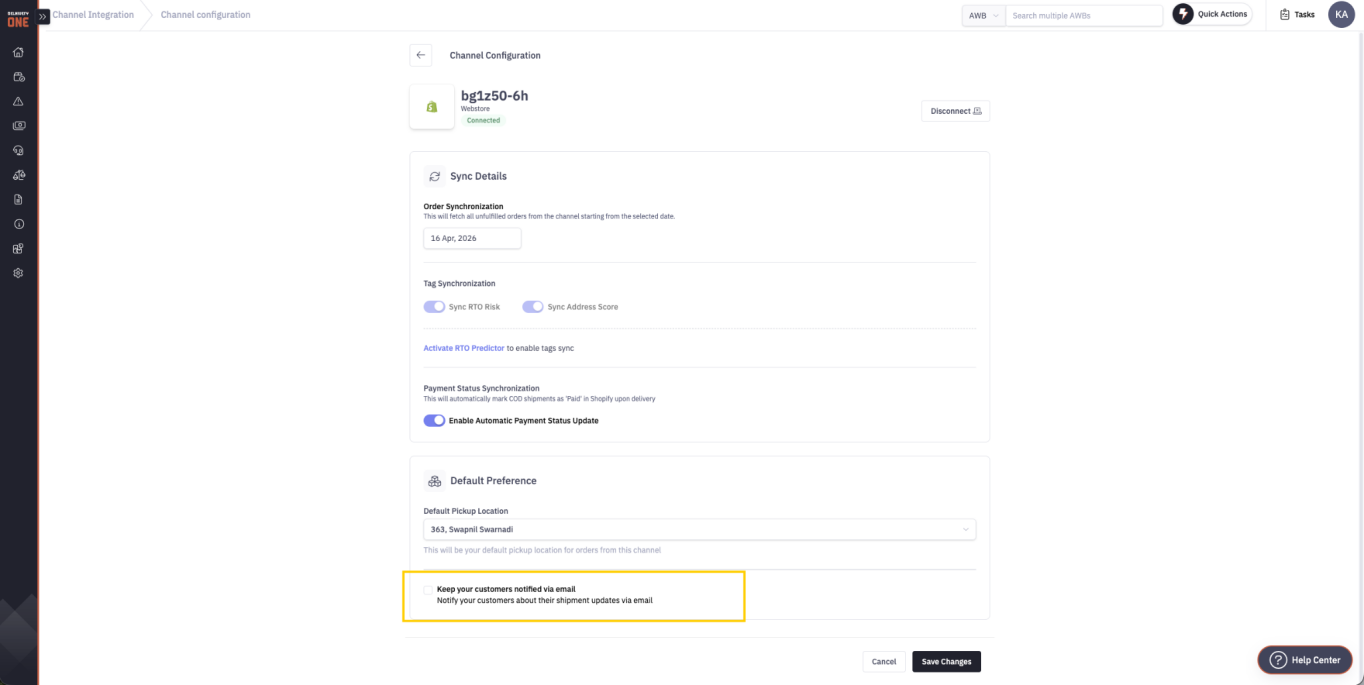
Channel Configuration — email notification setting
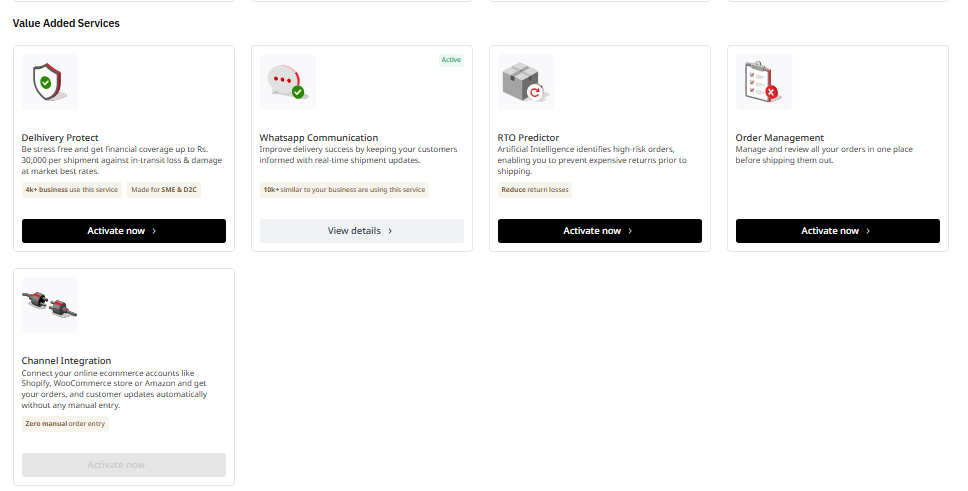
7. Why is the Channel Integration option greyed out in the Services tab?
Channel Integration can only be used once Order Management is activated — and Order Management can only be activated when the account has exactly one active domestic account.
If several domestic accounts are linked, the account is treated as an Enterprise account, Order Management cannot be activated, and Channel Integration stays greyed out (while Order Management remains visible).
HOW TO RESOLVE IT
- Raise a support ticket asking for only one domestic account to remain active and the others to be disassociated.
- Wait for the support team to confirm that only one domestic account is active.
- Go to Services → Order Management → Activate now.
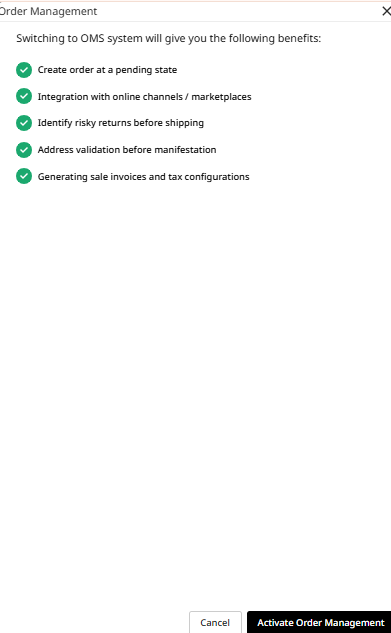
- Click Activate Order Management.
Once Order Management is active, Channel Integration becomes available to configure.
Services: Channel Integration greyed out until Order Management is active |
Activate Order Management |
|---|
8. Why are both forward delivered and RTO delivered orders marked as "Delivered" in Shopify?
By default, both forward deliveries and RTO (Return to Origin) deliveries may be reflected as Delivered in the Shopify shipment status field.
If you want RTO delivered shipments to be reflected as Failed Delivery in Shopify, this can be configured from our end.
To enable this configuration, raise a support ticket requesting that RTO delivered shipments be marked as Failed Delivery in Shopify.
9. Why are WooCommerce orders with a failed payment status appearing in the Pending tab?
By default, WooCommerce orders in both Processing and Pending payment status are fetched into the Pending tab — so orders whose payment has not gone through can still appear.
HOW TO RESOLVE IT — FETCH ONLY PROCESSING ORDERS
- Enable the Legacy API in the WooCommerce store.
- Raise a support ticket asking for only Processing orders to be fetched.
- The support team configures the statuses.
After this, only orders in Processing status are fetched into Pending.
10. How can I configure custom order statuses for WooCommerce?
Custom order status mapping is available on request:
- Enable the Legacy API in the WooCommerce store.
- Raise a support ticket requesting custom order status mapping.
- The support team shares the available status mappings.
- Choose the mappings you need and reply on the same ticket.
- The team configures the selected mappings for your integration.
From then on, orders in the selected WooCommerce statuses are mapped in Delhivery One as configured.
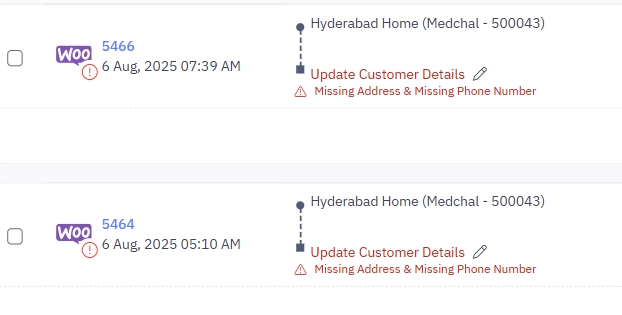
11. Why are the consignee address or mobile number not being fetched from WooCommerce?
If the order shows the error “Missing customer details”, it indicates that one or more required shipping address fields are missing in the order on your WooCommerce store.
To resolve this:
- Check the order details in WooCommerce and ensure that all required shipping address fields are filled in.
- Verify that the consignee's mobile number is correctly entered in the order details.
- Once the details are updated, check whether new orders are being fetched correctly into Delhivery One.
If the issue persists for new orders after all the required details have been entered, raise a support ticket with the relevant order ID and details. Ensure you are sending the complete shipping address; it is generally not the same as a billing address until configured from woocommer.
12. Why do I see “origin_address is a required field” when manifesting a Shopify order?
Answer:
This error occurs when a default pickup warehouse is not configured for your Shopify channel. In this case, Shopify orders may be fetched without a pickup location, requiring you to select the warehouse manually during manifestation.
For new orders
Configure a default pickup warehouse for your Shopify channel:
- Go to Services → Channel Integration.
- Click Configure for the required Shopify channel.
- Select the desired default pickup warehouse for your orders.
Once configured, the selected warehouse will be assigned as the pickup location for newly fetched orders.
For existing orders
Orders that were fetched before the default pickup warehouse was configured will not have a pickup location assigned automatically. For these orders, select the pickup warehouse manually before manifestation.
Go to Delivery Details → Select Facility and select the correct pickup warehouse from the dropdown.
13. Why are some WooCommerce orders automatically marked as Prepaid after being fetched into Delhivery One?
Answer:
Delhivery One fetches WooCommerce orders with Prepaid or cod payment status. If an order has any other payment status, such as Partial Payment, or if the payment status is blank, the order is fetched as Prepaid in the Delhivery One Pending tab.
You can update the payment status in Delhivery One if it has been assigned incorrectly.
- Update a single order:
Learn how to update an order on Delhivery One - Update orders in bulk:
Learn how to update orders in bulk
14. How to change the default pickup warehouse for any online channel?
Once you have created a new warehouse from Settings > Pickup location section (help document),
- Go to Services → Channel Integration.
- Click Configure next to your desired channel.
- Select the desired default pickup warehouse for your orders and click on save.
Default warehouse can be changed for default or manual channels too.
15. Which Amazon orders are fetched into Delhivery One?
Delhivery One fetches eligible Amazon orders based on their fulfillment channel, order status, and creation date.
Currently, only Unshipped orders fulfilled by the seller (MFN) from the Indian Amazon marketplace are fetched. Orders must fall within the configured order-fetch timeframe, which is currently limited to the last 7 days.
Orders fulfilled through Amazon Easy Ship or Fulfillment by Amazon (FBA) are not fetched for self-fulfillment through Delhivery One.
16. Which shipment status updates are sent from Delhivery One to Amazon?
Once an Amazon order is manifested in Delhivery One, its status is updated to Shipped on Amazon. Once the shipment is picked up, the status is further updated to Sent.
For any eligible order reaching Ready to Ship status, Delhivery One sends shipment confirmation and tracking details to Amazon.