Delhivery One MCP
The Delhivery One MCP lets you connect Delhivery One to AI coding assistants such as Cursor and Kiro, allowing you to interact with your shipping data using natural language.
Currently, the MCP supports read-only operations, including tracking shipments, checking shipping rates, viewing orders, wallet balance, and support tickets. Write and update operations will be available in a future release.
Support for AI assistants such as ChatGPT and Claude is also coming soon.
Before You Start
Make sure you have:
Cursor or Kiro installed
uvinstalled on your system
Install uv
macOS
brew install uv
Using pip
pip install uv
Verify the installation:
uvx --version
Where to Find the MCP Configuration
You can copy your MCP configuration anytime from:
Settings → API & MCP Setup
All your Delhivery credentials are automatically populated in the generated MCP JSON. Simply copy the configuration and paste it into your AI IDE. No manual configuration is required.
Quick Setup
Step 1: Copy the MCP Configuration
Go to Settings → API & MCP Setup and copy the generated MCP JSON.
Step 2: Paste into Your IDE
Cursor
Paste the configuration into:
.cursor/mcp.json
Kiro
Paste the configuration into:
.kiro/settings/mcp.json
Step 3: Restart the MCP Server
After saving the configuration, restart or refresh the MCP server in your IDE. Once connected, Delhivery One should appear as an available MCP server.
Try It Out
Open your AI assistant and ask:
Track shipment AWB 123456789
Show my recent shipments
Calculate shipping charges from Bangalore to Delhi
Schedule a pickup
List my support tickets
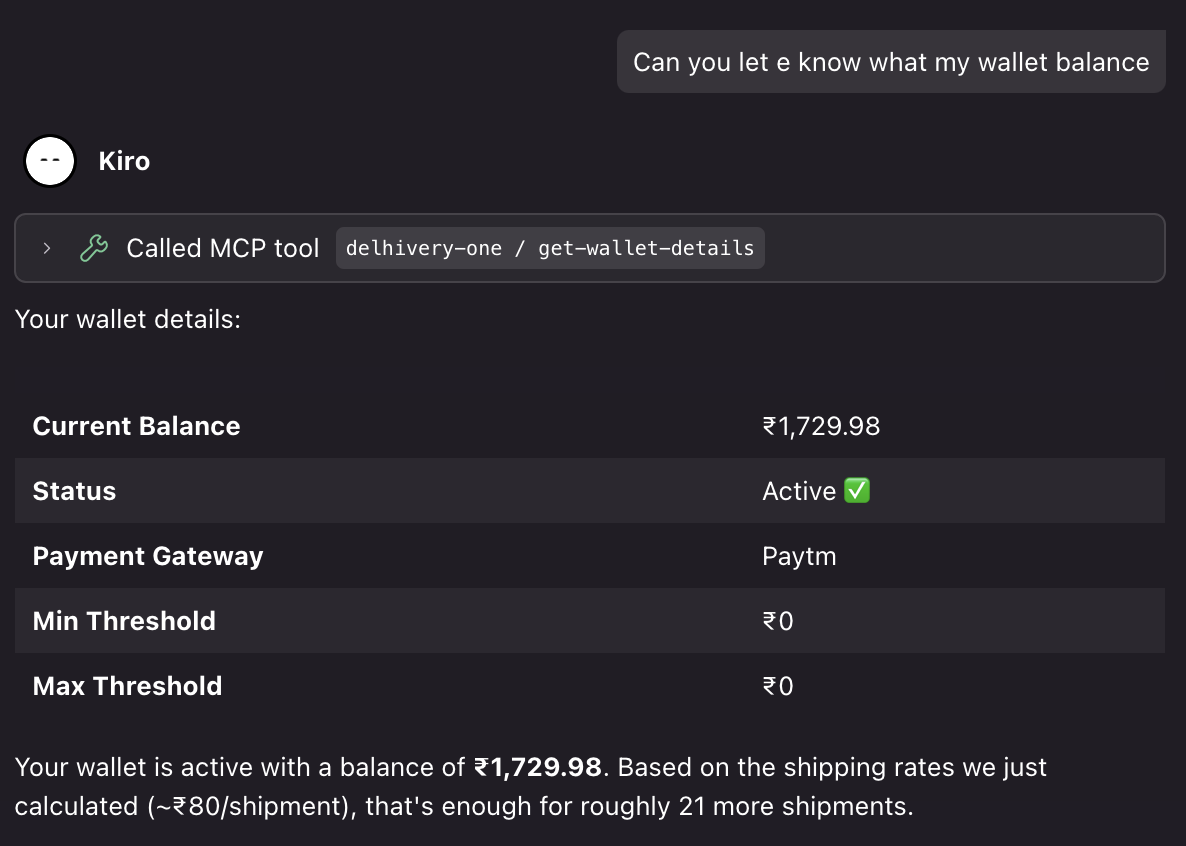
Check my wallet balance
Your AI assistant will automatically use the relevant Delhivery One APIs and return the results.
Frequently Asked Questions
Where can I find my MCP JSON?
Go to Settings → API & MCP Setup and copy the generated MCP configuration. All required credentials are already included.
Do I need to enter any API credentials manually?
No. All required Delhivery credentials are automatically populated in the generated MCP JSON.
Which AI IDEs are supported?
Currently, Delhivery One MCP supports Cursor and Kiro. Claude and ChatGPT support will be available soon.
Do I need Python installed?
No. You only need uv, which provides everything required to run the MCP server.
How do I know if the connection is successful?
After restarting the MCP server, Delhivery One should appear as a connected MCP server in your IDE.
What can I do once connected?
You can try these:
Track shipments
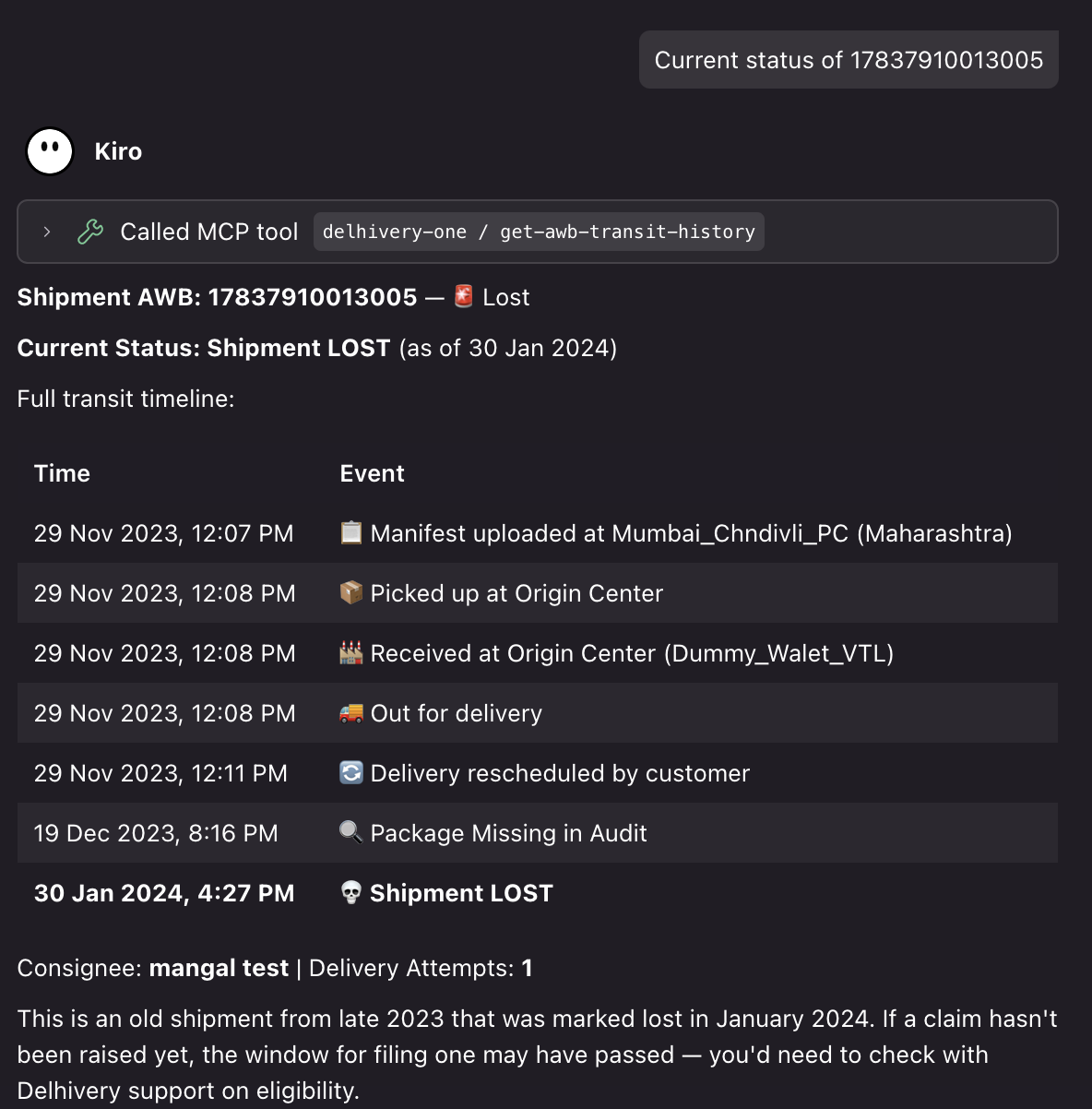
Get shipment details.
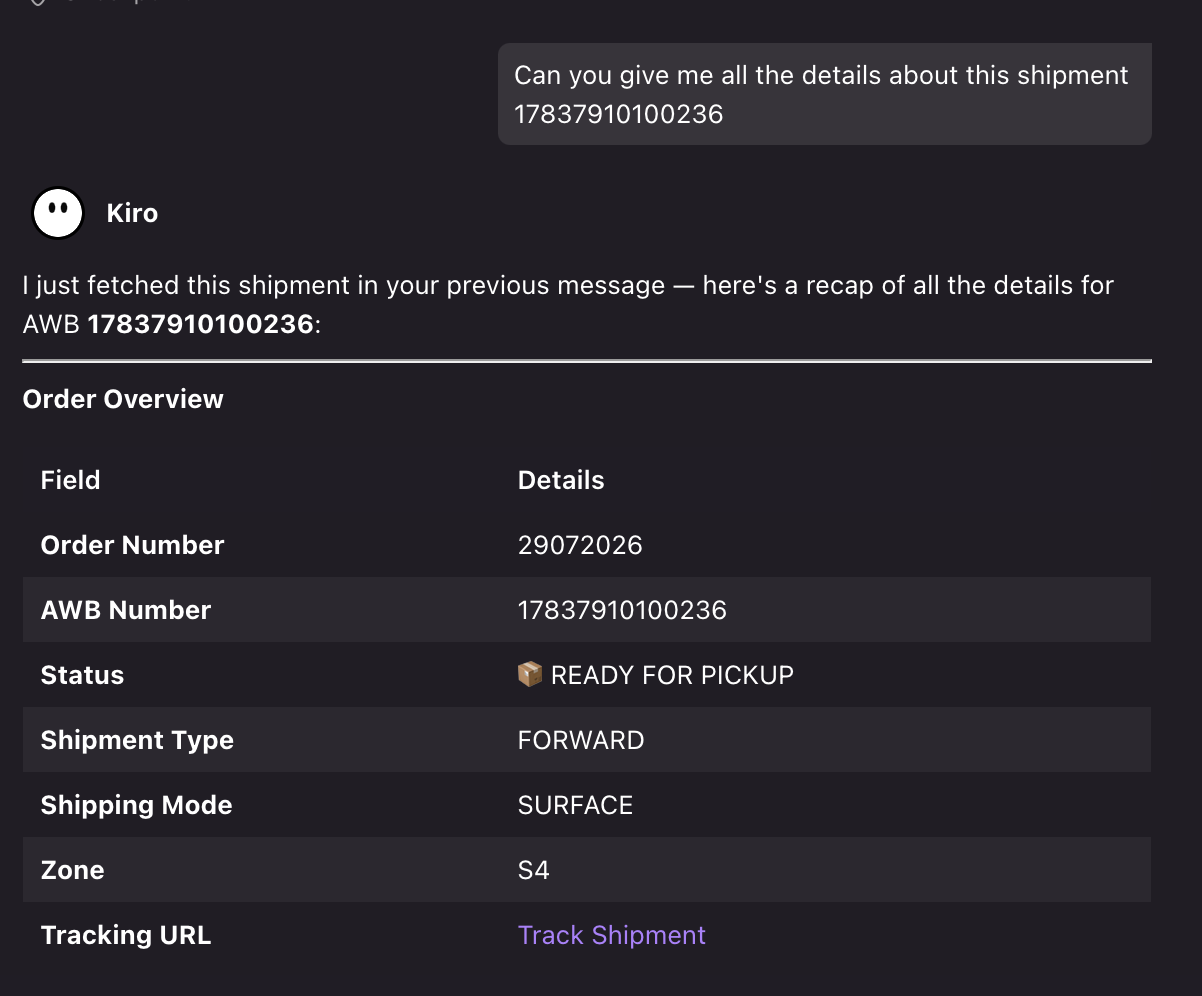
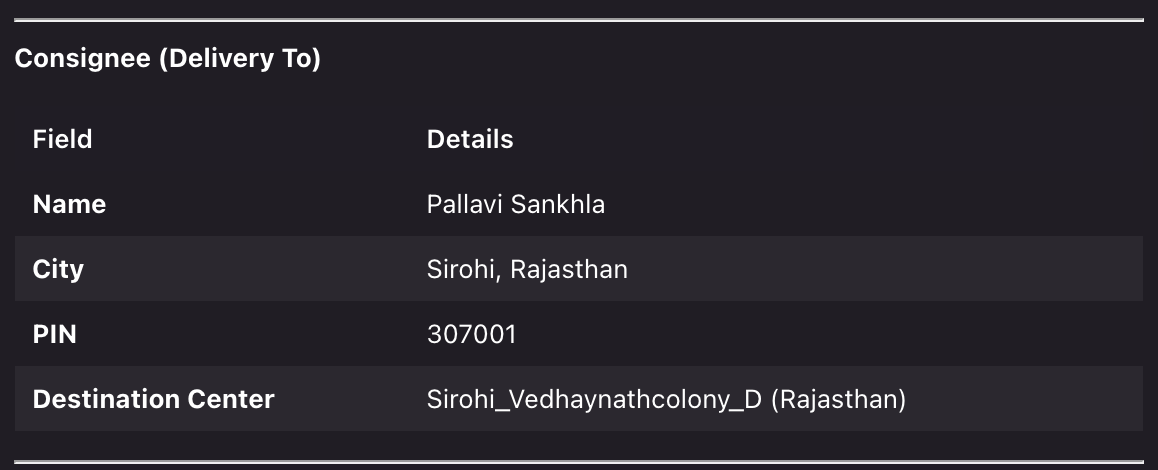
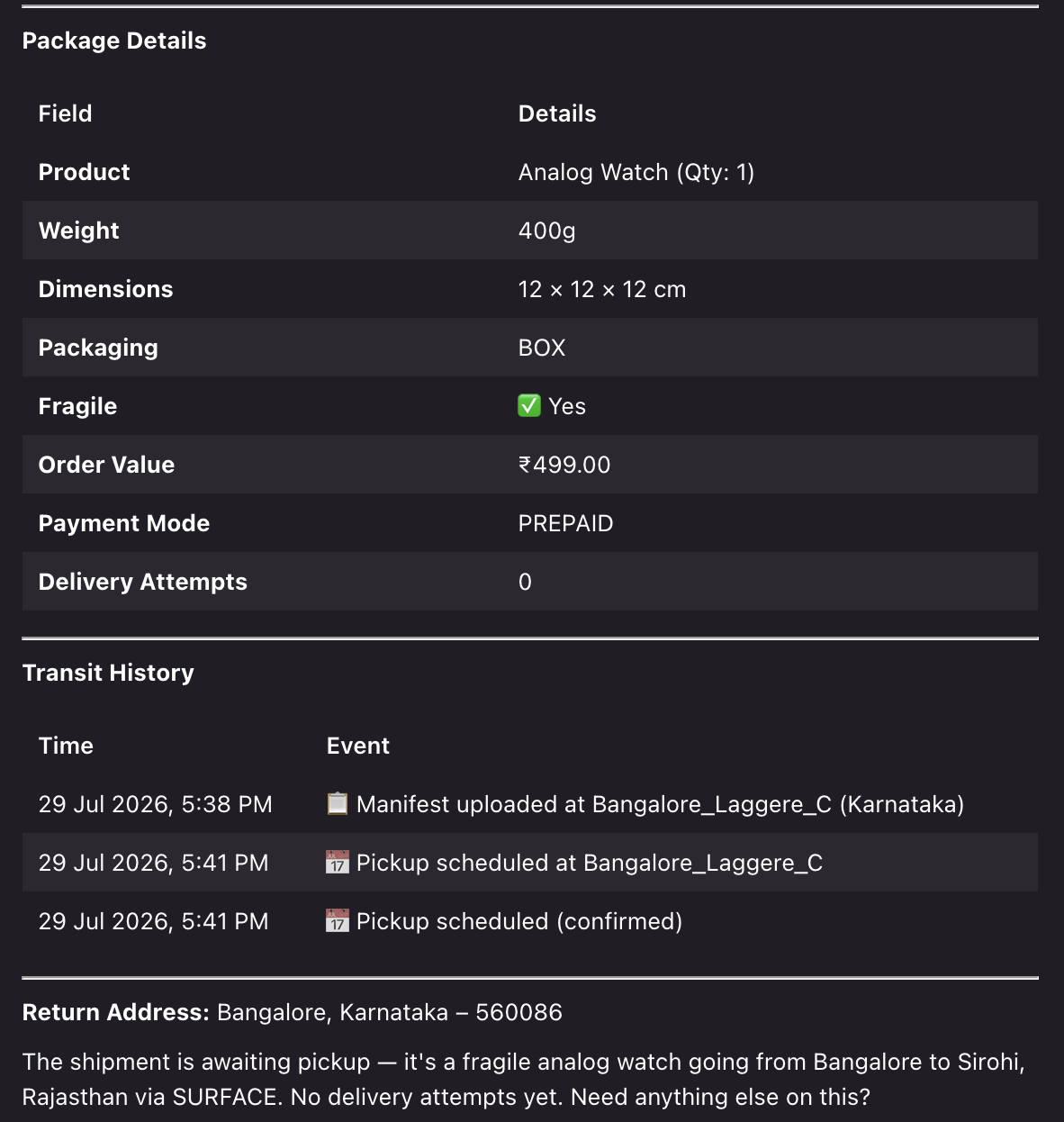
Calculate shipping rates
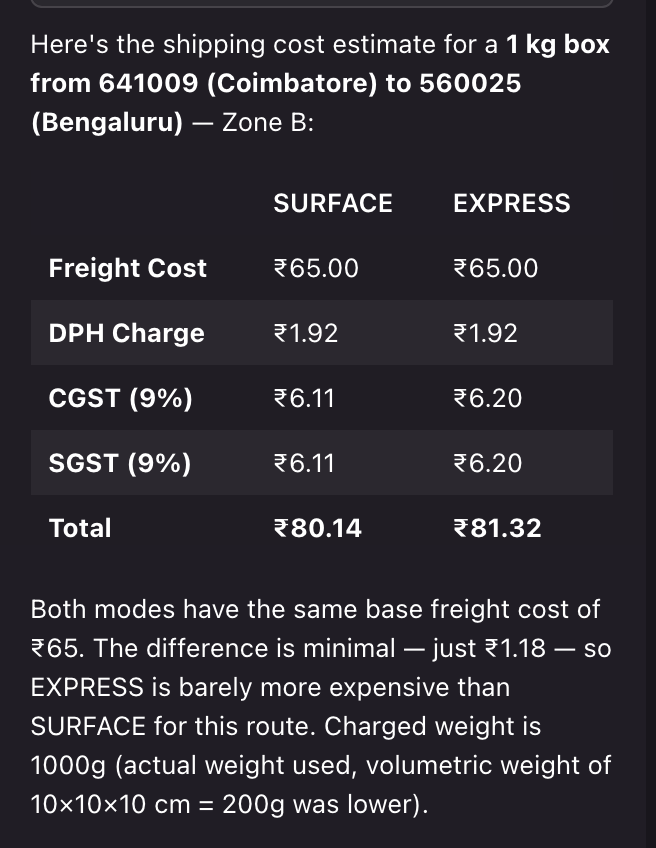
Check pickup request details
.png)
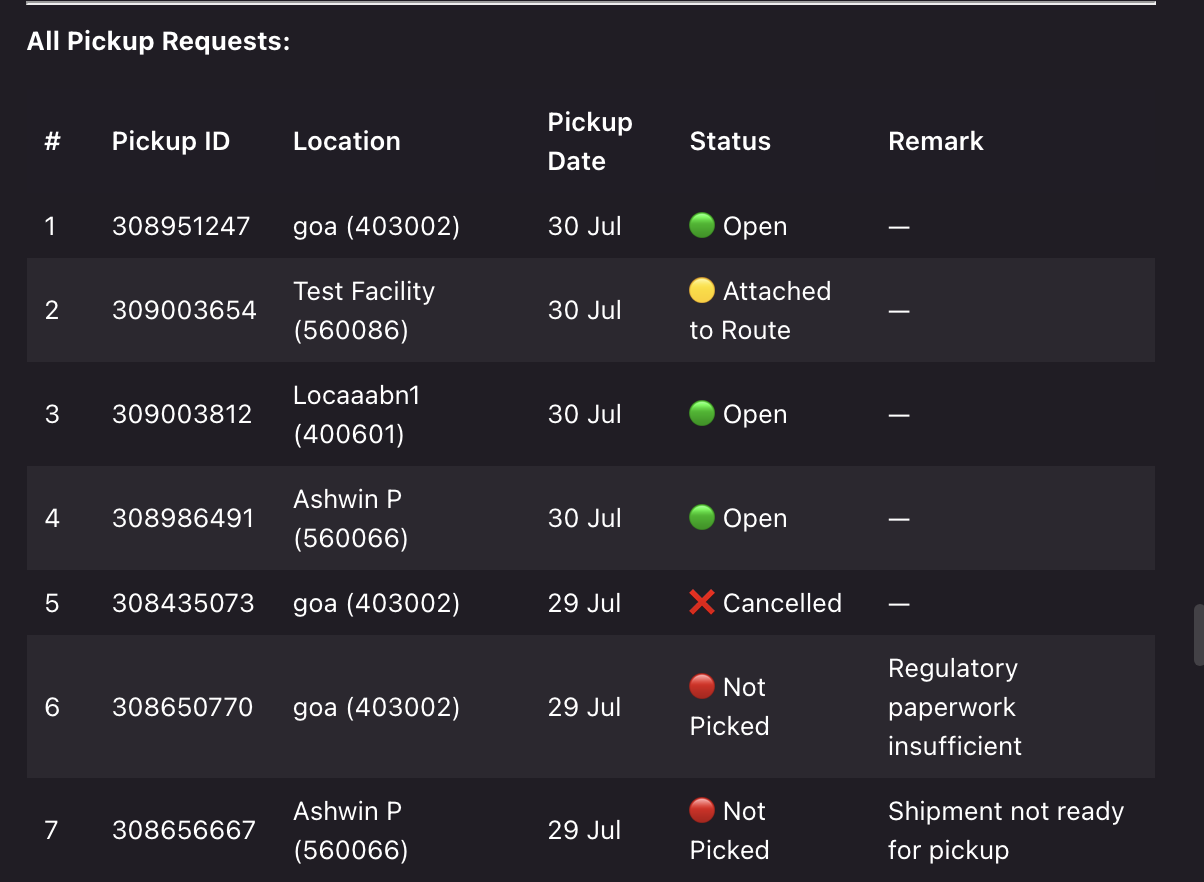
Check wallet balance
Get support ticket details
Access other Delhivery One APIs using natural language
The MCP server isn't connecting. What should I do?
Verify that
uvis installed.Restart or refresh the MCP server.
If the issue persists, contact your Delhivery account manager or support team.