Overview
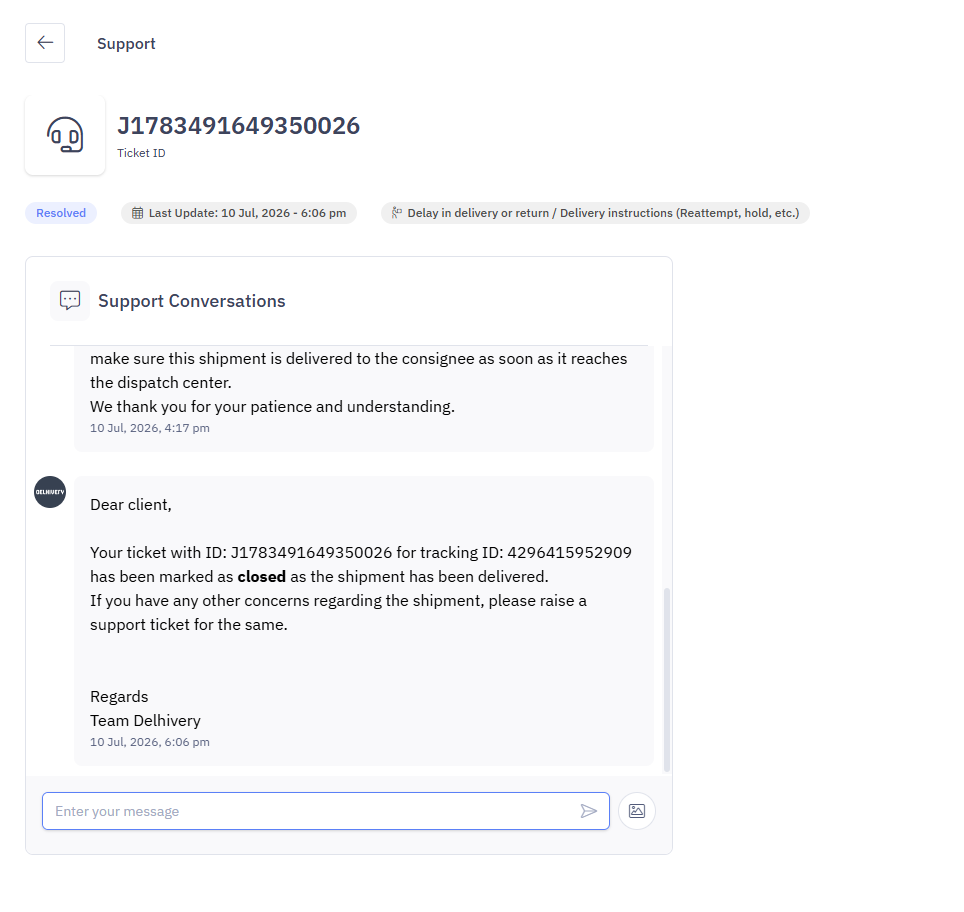
If you have any concerns about your B2B shipments, you can bring them to our attention by raising a support ticket on Delhivery One. Our dedicated customer support team is available to assist you with quick resolutions, ensuring a response within 3 hours (TAT).
In this section
How to raise a support ticket on Delhivery One?
Steps to raise a support ticket:
Navigation
Login to your B2B account on Delhivery One
Go to the Left Panel > Support
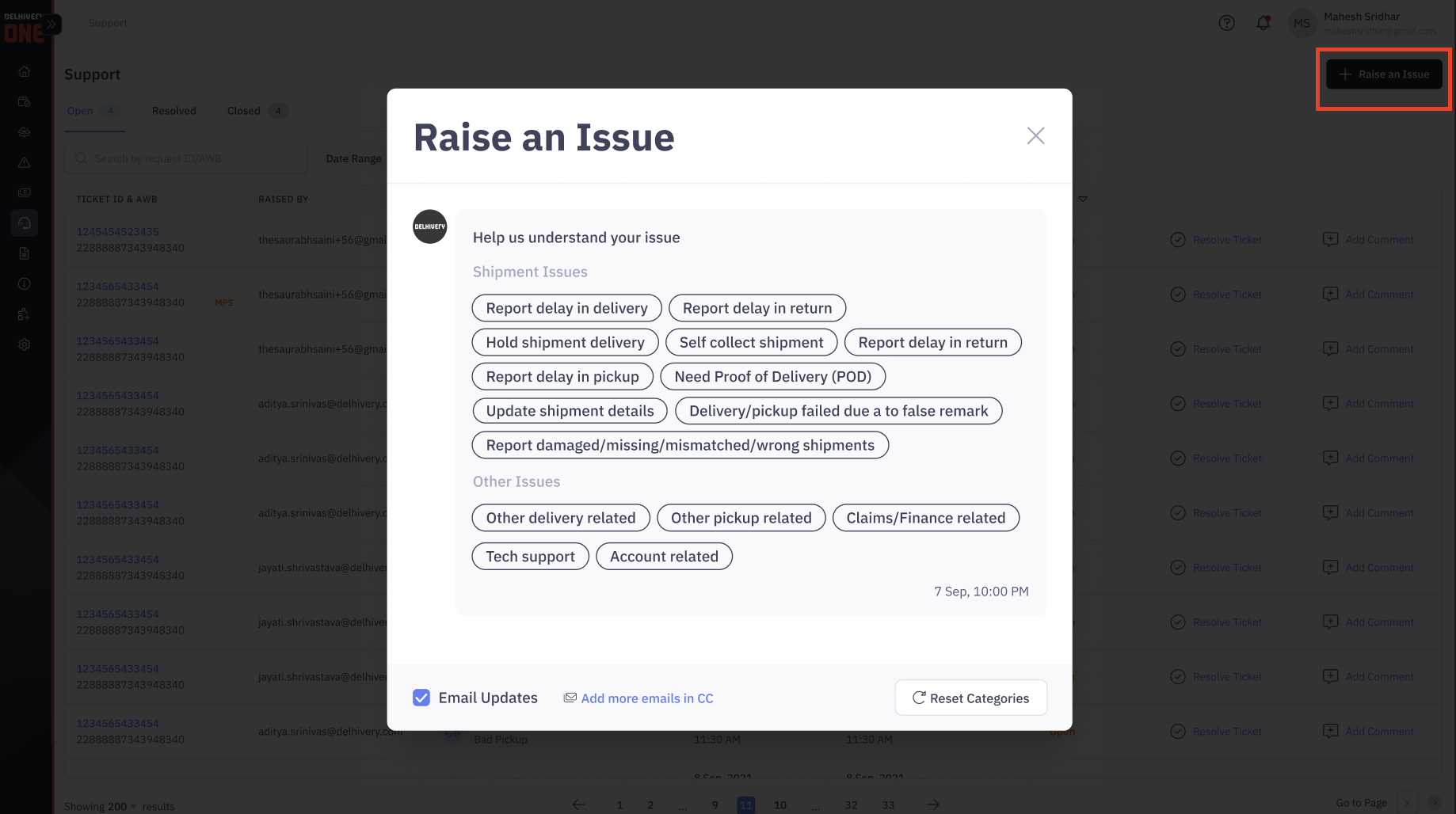
Click on Raise a Ticket
Select Issue Type
After clicking "Raise an Issue", a pop-up window will appear displaying various categories of issues.
Please select the relevant category and then choose the appropriate subcategory.
If you wish to revise the selected category or subcategory, click on Reset Categories at the bottom.
Enter affected LRNs
Note: Depending on the selected category and subcategory, entering affected LRNs may be mandatory or optional. If entering the LRNs is optional, you will have an option to Skip.
To enter multiple LRNs, you can enter them separated by comma.
A maximum of 10 LRNs can only be entered manually in the input box.
If you want to enter more than 10 LRNs, you can upload a .csv or .xls file with a maximum of 500 LRNs.
A sample file format is available for download; ensure your file matches this format before uploading.
After entering or uploading LRNs, click Proceed.
Provide Additional Information
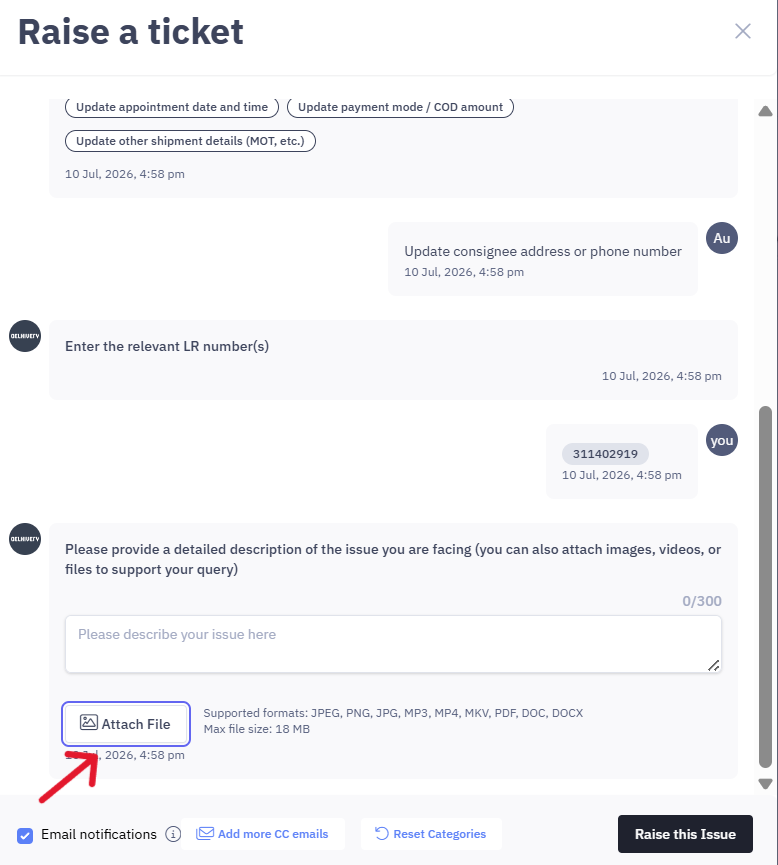
Add a detailed description of the issue, clearly explaining the problem you’re facing.
You can upload supporting files or images (e.g., screenshots or documents) to provide additional context
Supported formats: jpeg, png, jpg, mp3, mp4, mkv, pdf, doc, docx.
File size limit: Maximum 18 MB per file.
Enable Email Updates
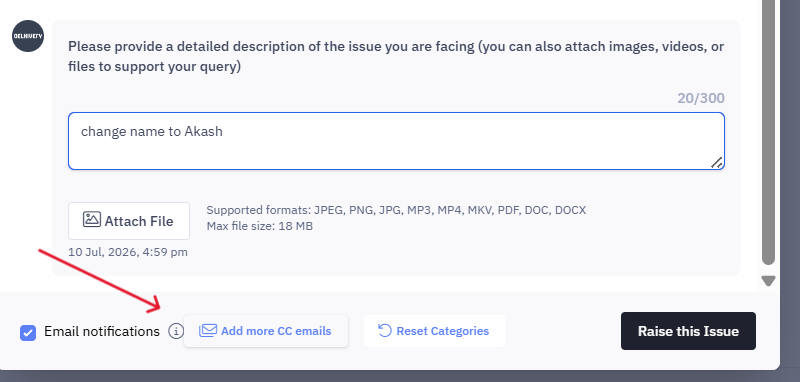
If you want to receive updates about your ticket via email, check the box labeled Email Updates.
You can also add CC recipients to keep others informed about the ticket's progress. Click Add More Emails in CC to include additional email addresses.
Create the Ticket
Once you have entered all the relevant information, click Raise this Issue
A new support ticket will get created with a unique request ID for reference.
In case of bulk upload for multiple LRNs, individual tickets will be created for each LRN with unique request IDs
Important Note
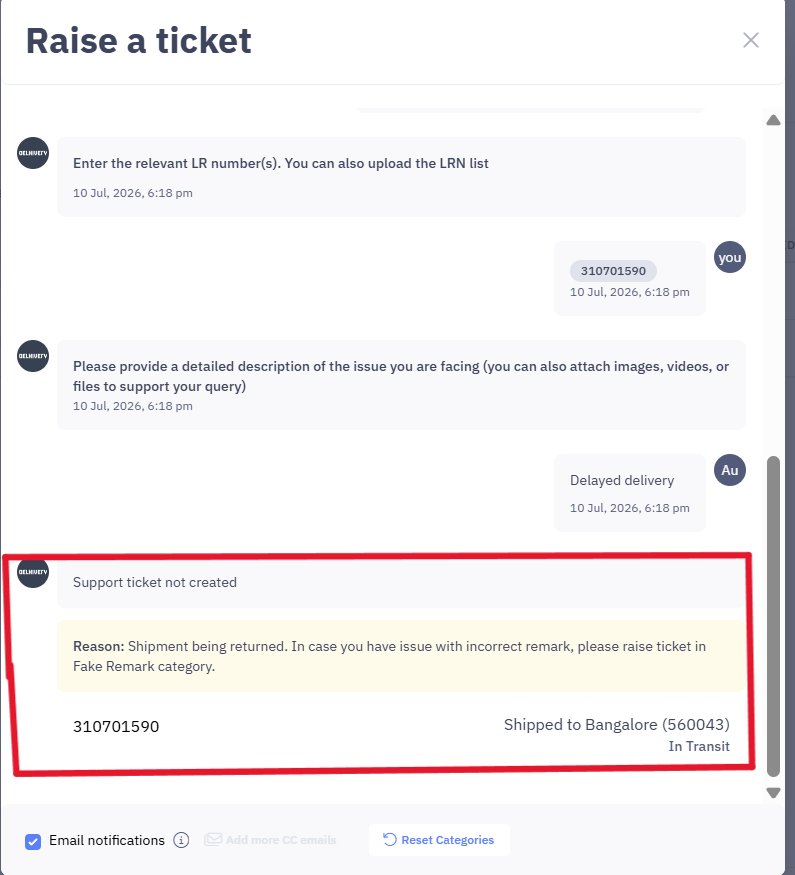
Some of your shipments may be ineligible for ticket creation under specific issue categories. For instance, If a shipment has already been returned, you cannot raise a ticket for delayed delivery.
Ineligible shipments will trigger a message after you click Raise this Issue, explaining the reason for non-eligibility.
How to track support tickets on Delhivery One?
Steps to track a support ticket:
Navigation
Login to your B2B account on Delhivery One
Go to the Left Panel > Support
Ticket Types
Your support tickets are categorized into three types:
Open: These are your newly created tickets.
The Delhivery customer support team responds within 3 hours from the ticket creation.
You can keep adding any additional comments regarding the issue you are facing and have ongoing conversations with the support team on the chat.
Resolved: These are your tickets which have been resolved.
An open ticket can be marked resolved either by you or our CS team.
In case you are not satisfied with the resolution provided by our support team, you can reopen the resolved ticket.
Closed: These are your tickets that have been closed.
A ticket is automatically marked closed when the open ticket has been marked resolved and has not been reopened within 48 hours.
Once the ticket is marked as Closed, you will not be able to reopen the ticket. If your issue is still not resolved, you can raise a new ticket.
Search Ticket
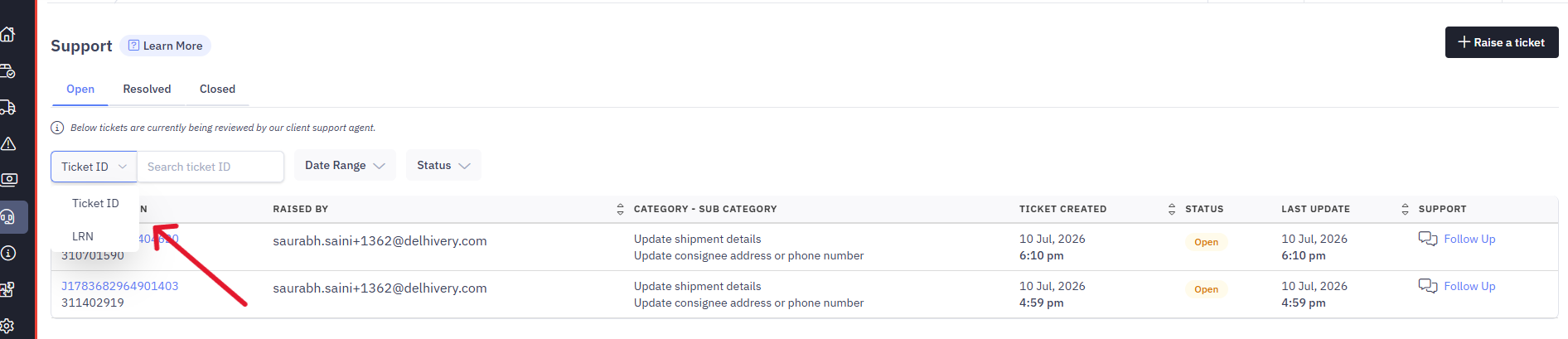
You can search your support tickets by Request ID or LRN from the search bar on the top.
How to resolve a support ticket on Delhivery One?
Once your issue is resolved, you can mark the ticket as resolved.
Steps to resolve a ticket
Navigate to the Left Menu > Support > Open> Select Request ID
If your issues have been resolved, click on Resolve Ticket.

How to reopen a support ticket on Delhivery One?
In case you are not satisfied with the resolution provided by our support team, you can reopen the resolved ticket within 48hours
Steps to reopen a ticket
Navigate to the Left Menu > Support > Open> Select Request ID
Adding your comment on the ticket to reopen the ticket.
Important Notes
You can reopen a resolved ticket only within 48 hours of being marked as resolved.
Once reopened, your ticket will move back to the Open category, and the support team will assist further.