GST-Compliant Shipping Label cum Invoice – Help Guide
Why this is important
To comply with GST regulations, all invoices must include mandatory details such as HSN code, tax type, tax percentage, tax amount, and company authentication (signature and stamp).
If you are using the shipping label as an invoice, these updates ensure your labels are fully GST-compliant.
What’s changing in Order Creation (Single & Bulk)
We are introducing the following updates in forward order creation:
- HSN Code will be required for all commercial shipments
- Tax Type (GST %) must be selected when HSN is provided
- GST will be calculated automatically
- Option to mark shipments as Personal Goods / Not for Sale
- Ability to upload Signature and Stamp
- Updated label design with GST-compliant fields
If you were onboarded via PAN and don’t have GST added, you can add it from the Company Details page.
https://help.delhivery.com/docs/add-gst-details-for-label-cum-invoice
This will ensure GST is printed on the label along with other details required for compliance.
1. Adding HSN Code in Order Creation
You will now see an HSN Code field while creating orders:
Available in:
- Single shipment creation
- Bulk upload (CSV)
What to do:
Enter a valid 4-digit or 6-digit or 8 digit HSN code
https://services.gst.gov.in/services/searchhsnsac
2. Selecting Tax Type (GST %)
- Once HSN is entered, Tax Type becomes mandatory
- Select the applicable GST % based on your product
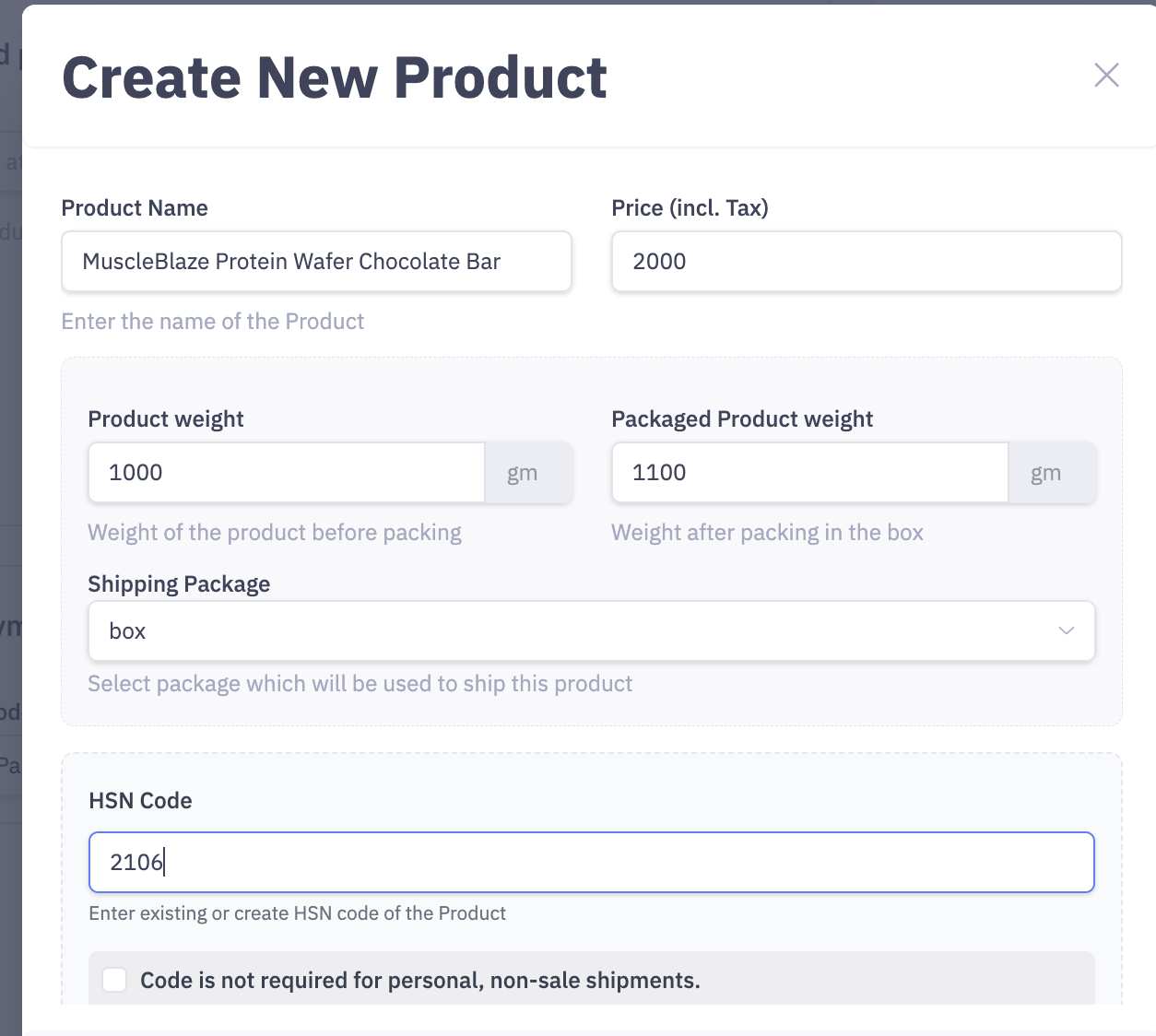
Tax type and HSN code is Mandatory for commercial goods (for sale)
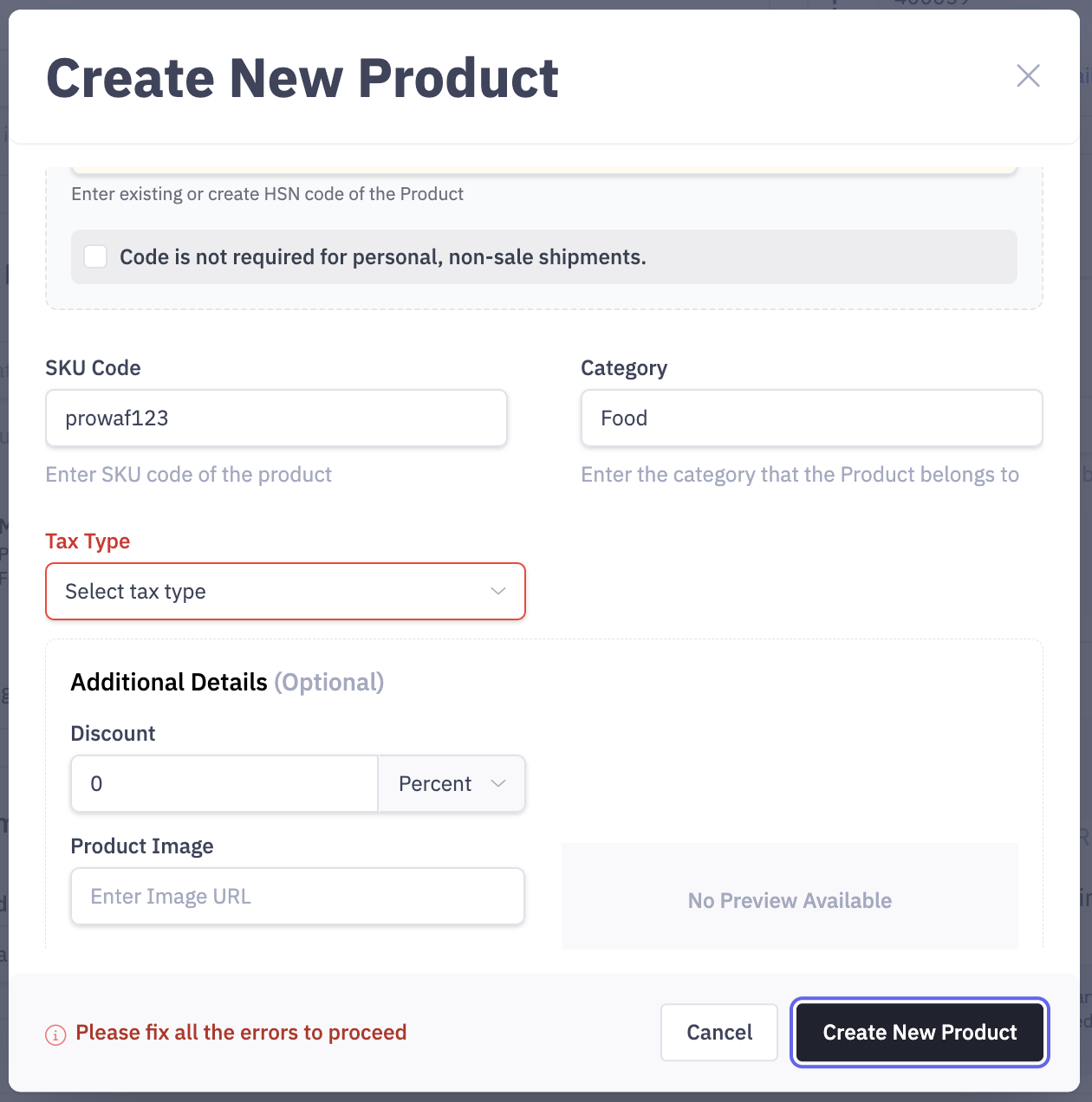
Note: Once saved at the Product SKU or Product Catalog level, the HSN code and tax type do not need to be entered again.
3. Personal Goods / Not for Sale Option
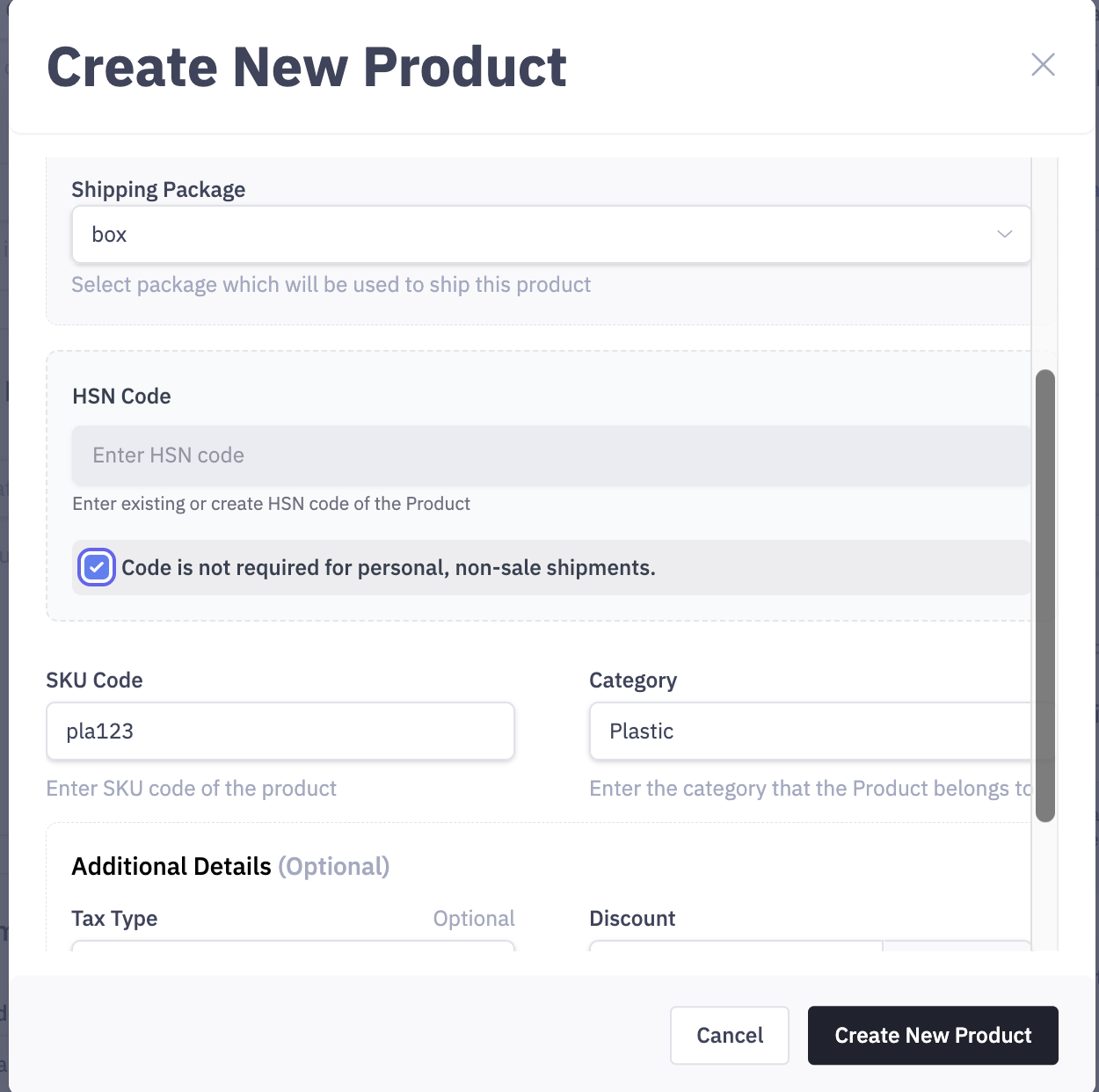
If you are shipping non-commercial items: Enable the “Personal Goods / Not for Sale” option
What happens:
- HSN field becomes optional
- GST will not be applied
- Tax fields will be set to zero
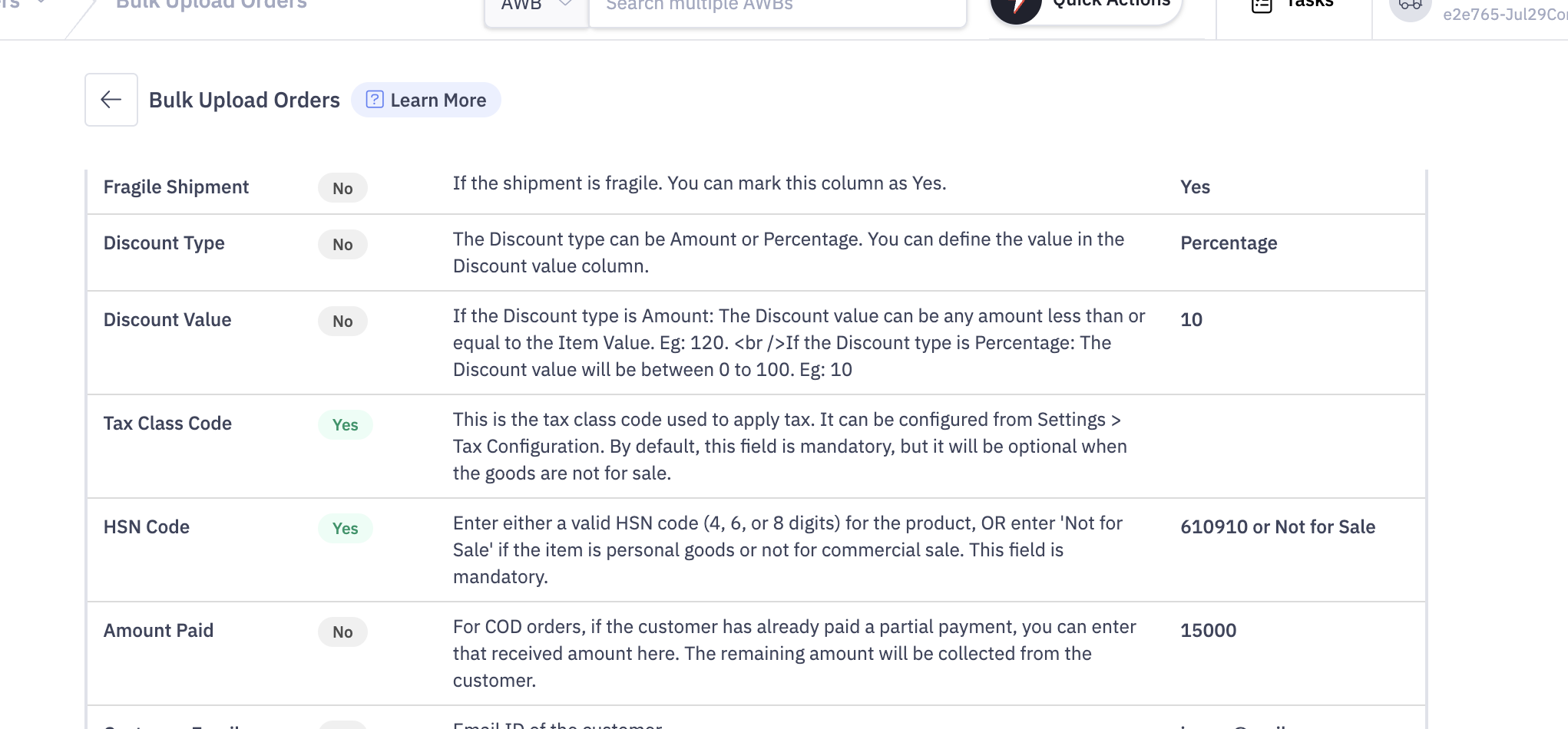
4. Bulk Upload (CSV) Changes
A new column “HSN Code” is added in the CSV:
- Enter HSN code
- OR mark as “Personal Goods / Not for Sale”
Note:
Tax Type is mandatory only when HSN is provided
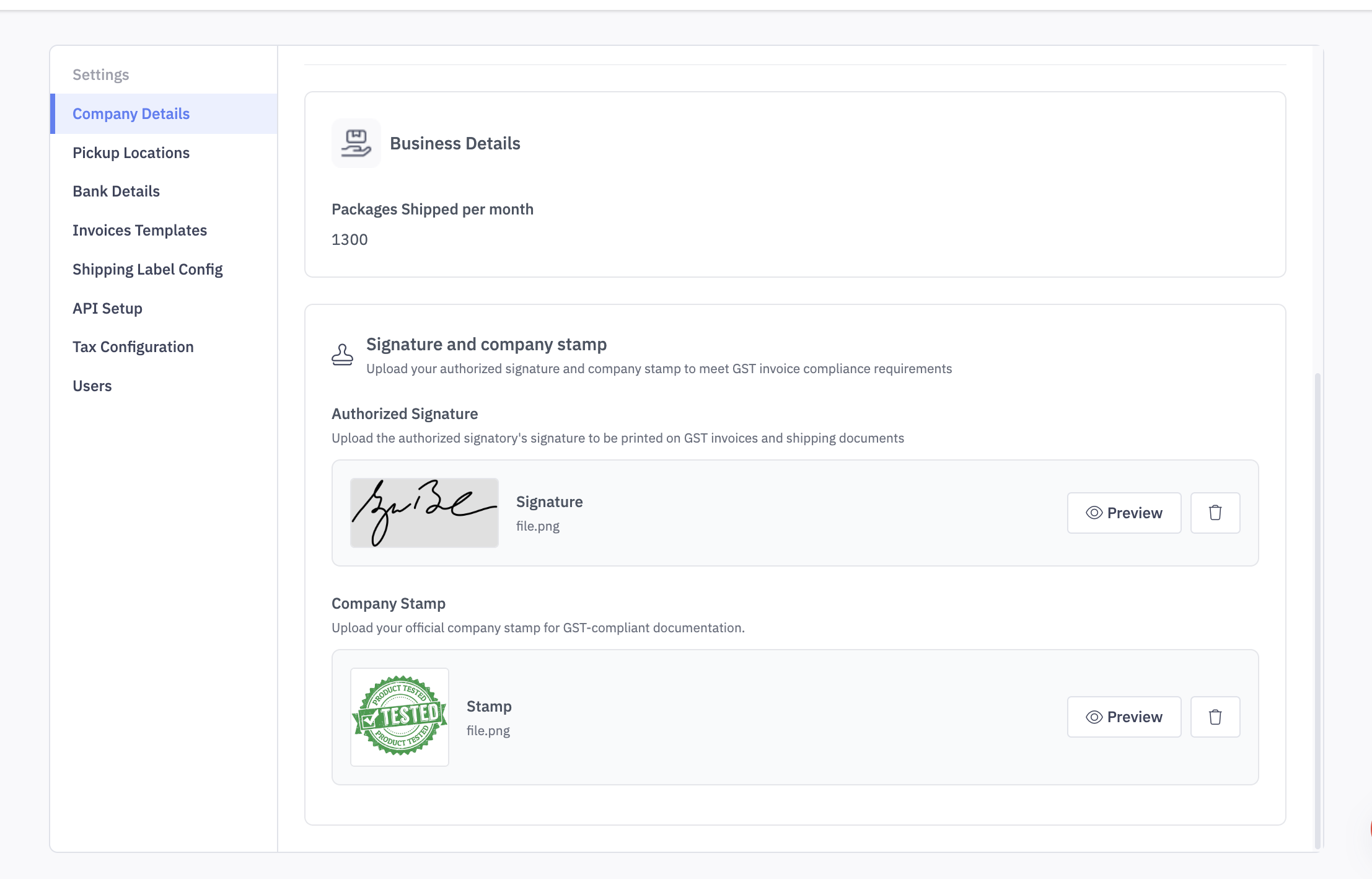
5. Upload Signature and Stamp
You can now upload your company details
Go to:
Settings → Company Details
You can:
- Upload signature
- Upload company stamp
- Edit uploaded images
These will be automatically printed on your shipping label.
 6. Automatic GST Calculation
GST will now be calculated automatically based on:
- HSN Code
- Tax % selected
- Pickup and delivery state
How it works:
- Same state → CGST + SGST
- Different state → IGST
No manual calculation is required.
7. Updated Shipping Label
Your shipping label will now include:
- HSN Code
- GST Type (CGST/SGST/IGST)
- GST %
- GST Amount
- Personal Goods declaration (if applicable)
- Signature and Stamp
Shipping label for commercial goods (for sale)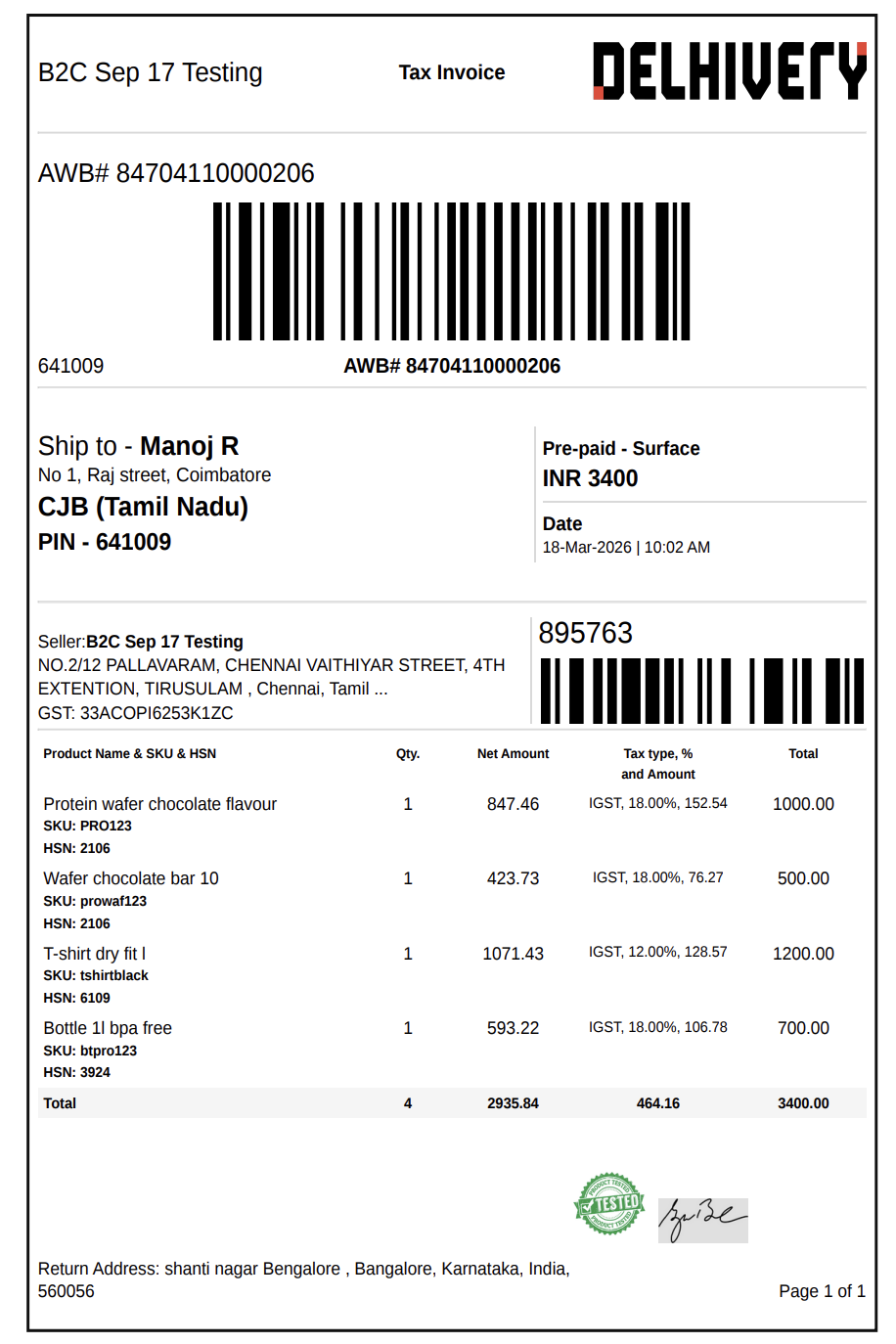 Personal Goods/Not for Sale Shipping Label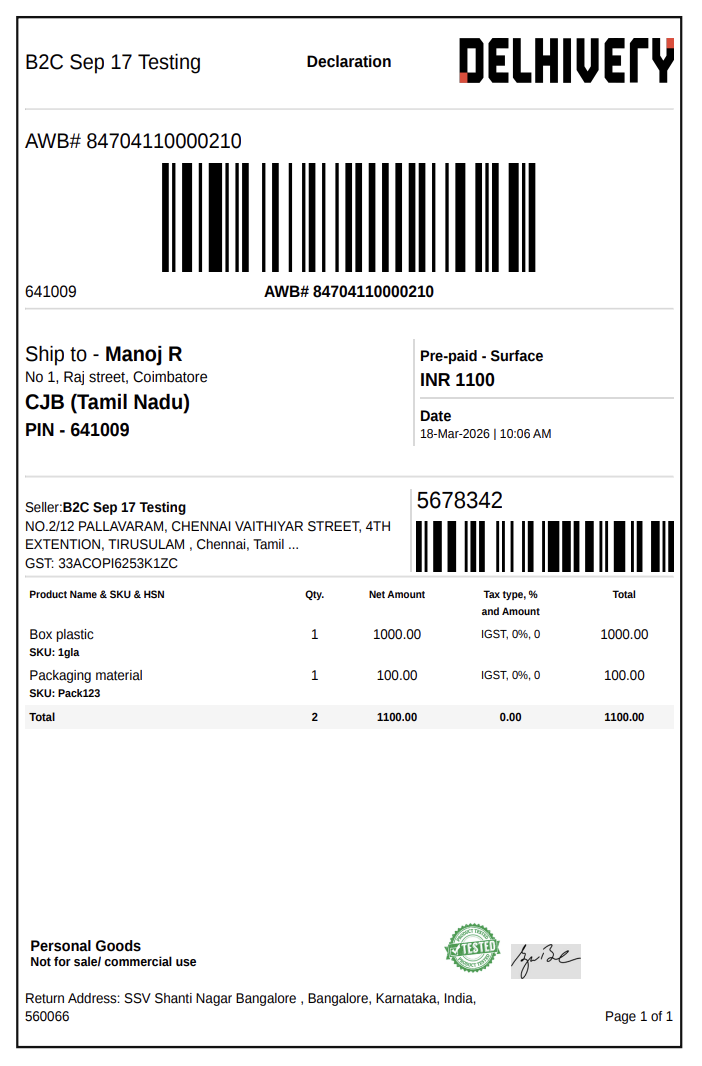
8. Important Notes
- HSN and Tax Type are mandatory for all commercial shipments
- For Personal Goods / Not for Sale:
GST is not applied, HSN is not required Existing products without HSN/Tax may require updates during order creation
These changes ensure your shipping label can also act as a GST-compliant invoice, helping you stay compliant without needing separate invoicing tools.