Invoice Management
Where can I see invoices on Delhivery One
As a B2B (LTL) client, you can now manage your billing documents seamlessly within the portal.
Navigation: Log into Delhivery One and locate the Finance group in the sidebar. Click on Invoice Management.
Permissions: Only users with the Company Owner or Company Admin role have access to the Invoice Management section.
Note: The Invoice Management menu is available regardless of whether you have an active Wallet setup.
1. Invoice Dashboard Features
The invoice list provides a quick summary of your billing cycles. Please note that Freight on Pickup (FOP) and Freight on Delivery (FOD) invoices are excluded from this list (they remain available at the LR level on the Order Detail page).
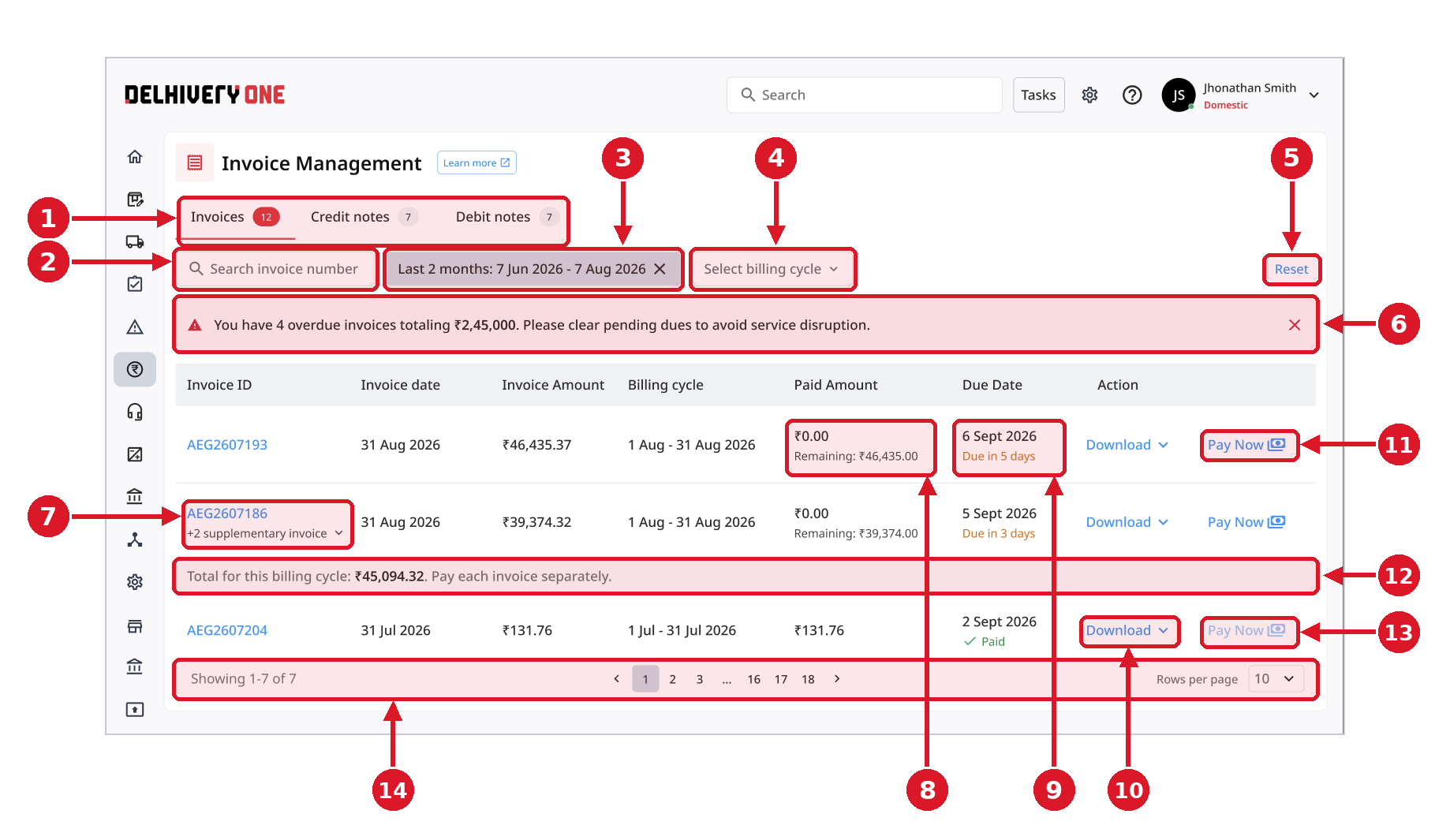
# | Feature | What it does |
|---|
1 | Document tabs | Switch between Invoices, Credit notes and Debit notes. The badge on each tab shows how many records it holds. |
2 | Invoice number search | Search directly for a specific Invoice ID. |
3 | Date range filter | Narrow down invoices within a specific date range. The active range is shown here; click the ✕ to clear it. |
4 | Billing cycle filter | View invoices matching a specific billing period. Supplementary invoices issued at a later date automatically appear if they belong to the selected primary billing cycle. |
5 | Reset | Clears all applied search terms and filters in one click. |
6 | Overdue alert banner | Shows how many invoices are overdue and the total amount, with a reminder to clear pending dues to avoid service disruption. |
7 | Invoice ID & supplementary invoices | The unique identifier for your invoice (click to open it). Where supplementary invoices exist for the same billing cycle, a “+2 supplementary invoice” control lets you expand them. |
8 | Paid & remaining amount | Displays your settled (paid) amount and any outstanding balance directly below it. |
9 | Due date & status | Indicates when payment is due, with a “Due in {X} days” label for upcoming deadlines. Fully paid invoices show a green checkmark here. |
10 | Download | Opens the download options for the invoice, including the PDF and the LR-level transaction CSV. |
11 | Pay Now (active) | Opens a secure payment link for an outstanding invoice. Once payment is complete, the Paid and Remaining amounts update automatically. |
12 | Billing cycle total | When a billing cycle has supplementary invoices, this strip shows the combined total for the cycle. Each invoice must be paid separately. |
13 | Pay Now (disabled) | Greyed out once an invoice is fully paid, alongside the green check on the due date. |
14 | Pagination & rows per page | Move between pages of invoices and choose how many rows to show per page. |
Filtering and Searching
Quickly locate specific documents using the filters located at the top of the invoice list:
Billing Cycle Filter: View invoices matching a specific billing period. Note that supplementary invoices issued at a later date will automatically appear if they belong to the selected primary billing cycle.
Date Range Filter: Narrow down invoices within a specific timeframe.
Invoice Number: Search directly for a specific Invoice ID.
Viewing and Downloading Documents
You no longer need to wait for emails to access your detailed billing information or transaction breakdowns.
In-App PDF Viewer: Click on any invoice to view the full document directly inside the platform. All specific details (like GST Number, Service Type, and Bill Breakdown) are clearly visible within the PDF.
Real-Time PDF Download: Download the invoice PDF instantly to your browser from within the viewer or the listing actions.
LR-Level Transaction CSV: Download a detailed breakdown of your LR-level transactions directly to your browser for immediate analysis.
Making Payments and Tracking Status
Easily settle your balances and track overdue payments.
Pay Now: Click the Pay Now button next to an outstanding invoice to open a secure payment link. Once completed, your Paid and Remaining amounts will update automatically.
Due Date Tracking: Invoices will display a “Due in {X} days” label to help you track upcoming deadlines.
Overdue Notices: If a payment is late, the status will change to “Payment overdue by {X} days” along with a reminder to clear the balance to avoid service restrictions.
Settled Invoices: Once fully paid, the Remaining Amount section will disappear, the “Pay Now” action will be disabled, and a green check indicator will confirm settlement.
2. Mobile View
On a phone, each billing cycle appears as a card instead of a table row, with any supplementary invoices nested inside it, and filters sit behind a single
button.
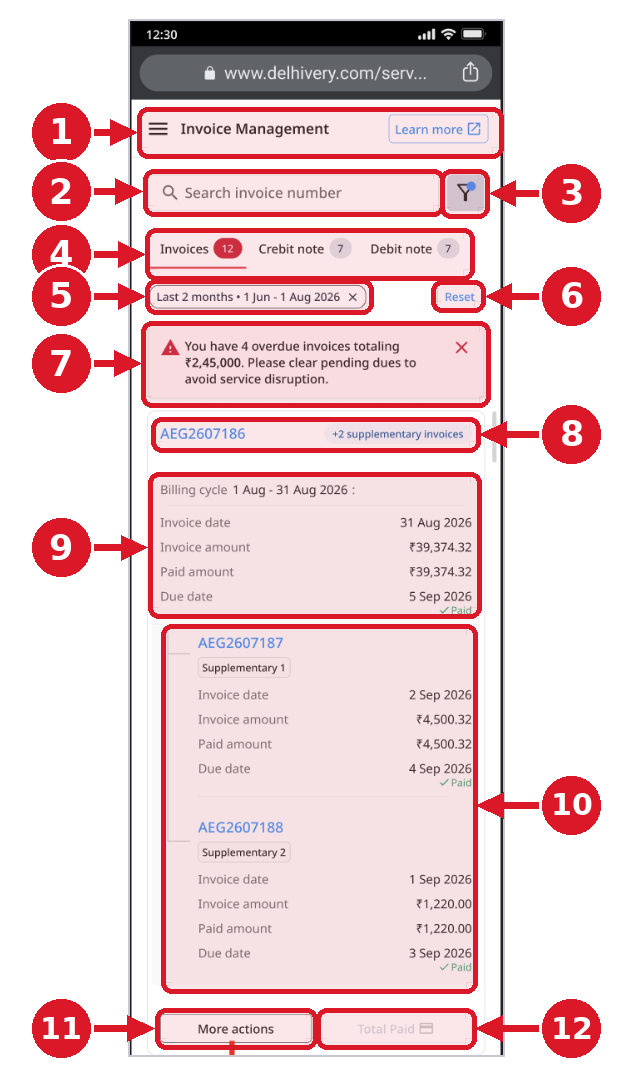
| 1. Page header The menu, the Invoice Management title and a Learn more link. 2. Invoice number search Search directly for a specific Invoice ID. 3. Filter button Opens the filter options. The blue dot signals that a filter is currently applied. 4. Document tabs Switch between Invoices, Credit note and Debit note. The badge shows the record count. 5. Applied date range Shows the active date range as a chip. Tap the ✕ to remove it. 6. Reset Clears all search terms and filters. 7. Overdue alert Shows the number of overdue invoices and the total amount due. Tap the ✕ to dismiss it. 8. Invoice ID & supplementary tag Each billing cycle is shown as a card headed by its Invoice ID. A “+2 supplementary invoices” tag shows that more invoices belong to this cycle. 9. Invoice details Billing cycle, Invoice date, Invoice amount, Paid amount and Due date, with a green “Paid” indicator once settled. 10. Supplementary invoices Supplementary invoices are nested under the main invoice, each with its own Invoice date, amount, paid amount and due date. 11. More actions Opens the More actions menu to view or download documents (see below). 12. Payment action The payment action for the card. It is greyed out here because every invoice in this cycle is already paid. |
|
Viewing and Downloading on Mobile
Tap More actions on a card to choose which invoice you want to work with, then pick what to do with it.
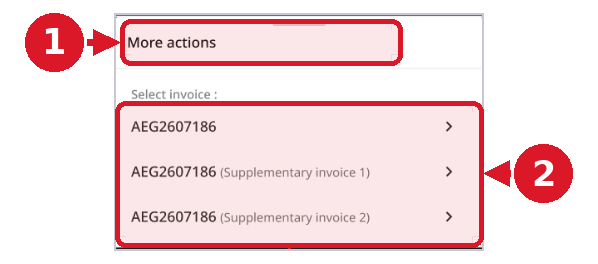
Step 1: More actions 1. The menu lists every invoice in the billing cycle. 2. Select the main invoice or one of its supplementary invoices. |
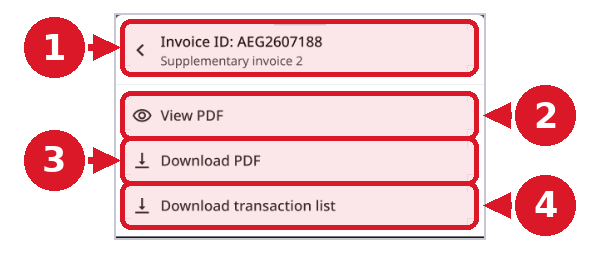
Step 2: Choose an action 1. Confirms the selected invoice; use the back arrow to pick a different one. 2. View PDF opens the invoice in the in-app viewer. 3. Download PDF saves the invoice PDF to your device. 4. Download transaction list saves the LR-level transactions. |