In this article, you will learn:
Overview
The Lost and Damage (L&D) Claims module on Delhivery One allows B2B clients to raise and track claims for shipments that are lost, damaged, or have missing/short contents.
For B2B shipments, claims are raised against the LR (Lorry Receipt) and are handled at the lot level.
This comprehensive guide will walk you through the end-to-end process of raising and tracking B2B claims on Delhivery One.
You can raise a claim if your shipment is/has:
Lost in transit
Boxes missing
Contents short or missing
Box damaged
Contents damaged
A combination of damage and missing/short shipment
Note: The claim types available to you depend on the current status of the shipment.
Before raising a claim
Before raising a claim, make sure that all shipments associated with the LR have reached a terminal state.
The shipments under the LR must be in one of the following states:
Delivered
RTO
Marked Lost
Claim creation is allowed only once the shipments associated with the LR have reached a terminal state.
What if the shipment is delayed?
If one or more shipments associated with the LR are still in transit or are delayed, you will not be able to create a Lost & Damage claim yet.
For delayed or non-terminal shipments, raise a support ticket from the Need help? section.
Use the following category and subcategory:
Category: Issue with delivered/returned shipment (damage, missing, wrong, partial, etc.)
Subcategory: Partial / Short shipment delivered
Once the shipment reaches a terminal state such as Delivered, RTO, or Marked Lost, you can raise the applicable claim from the Lost & Damage Claims section.
How to submit a new claim
On Delhivery One: Navigate to Main Menu > Dispute > Lost & Damage Claims.
This section allows you to:
Raise a new claim
Track all your claims
Follow up or respond to an existing claim
View your claim details and settlement information
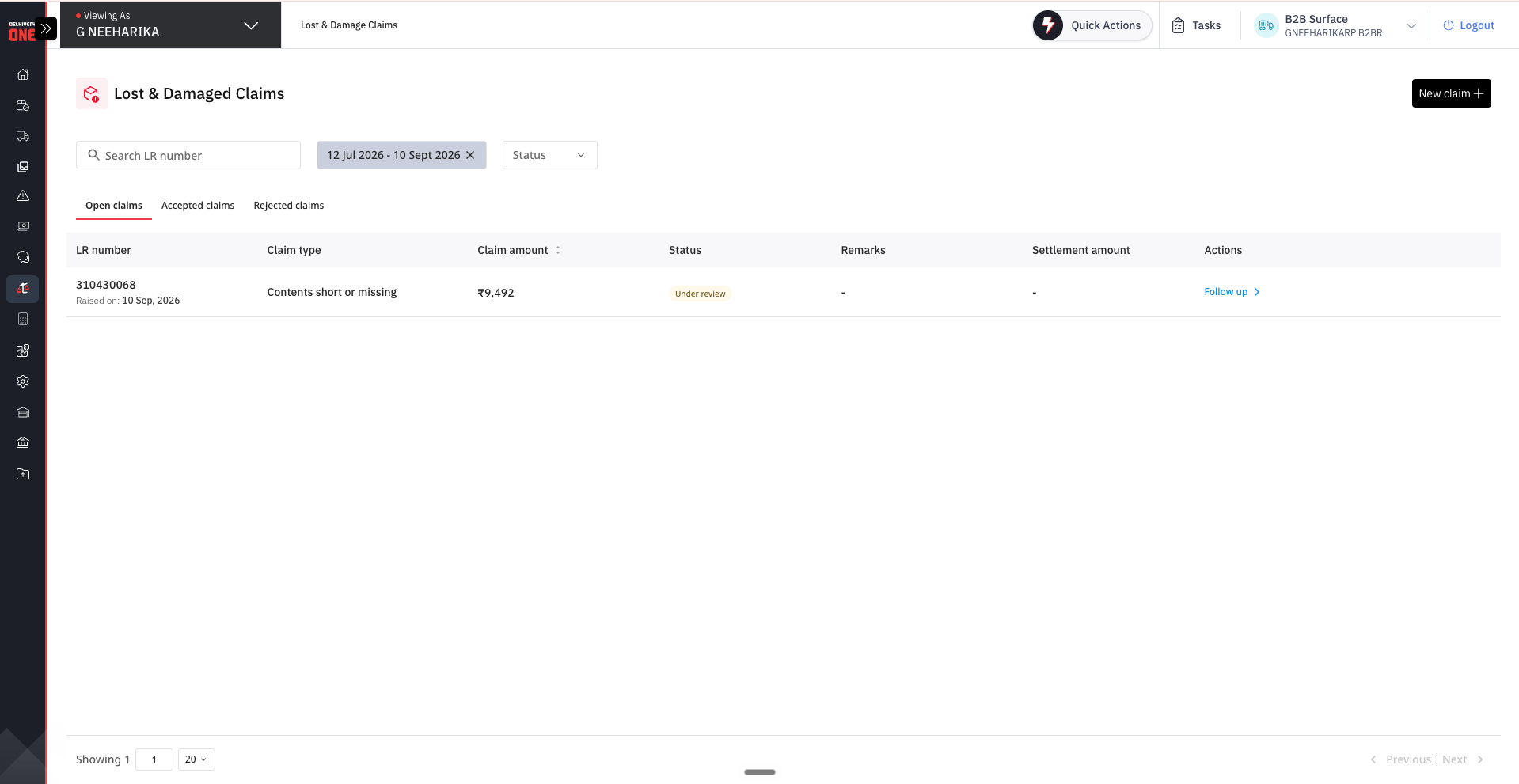
To raise a new claim, click New Claim.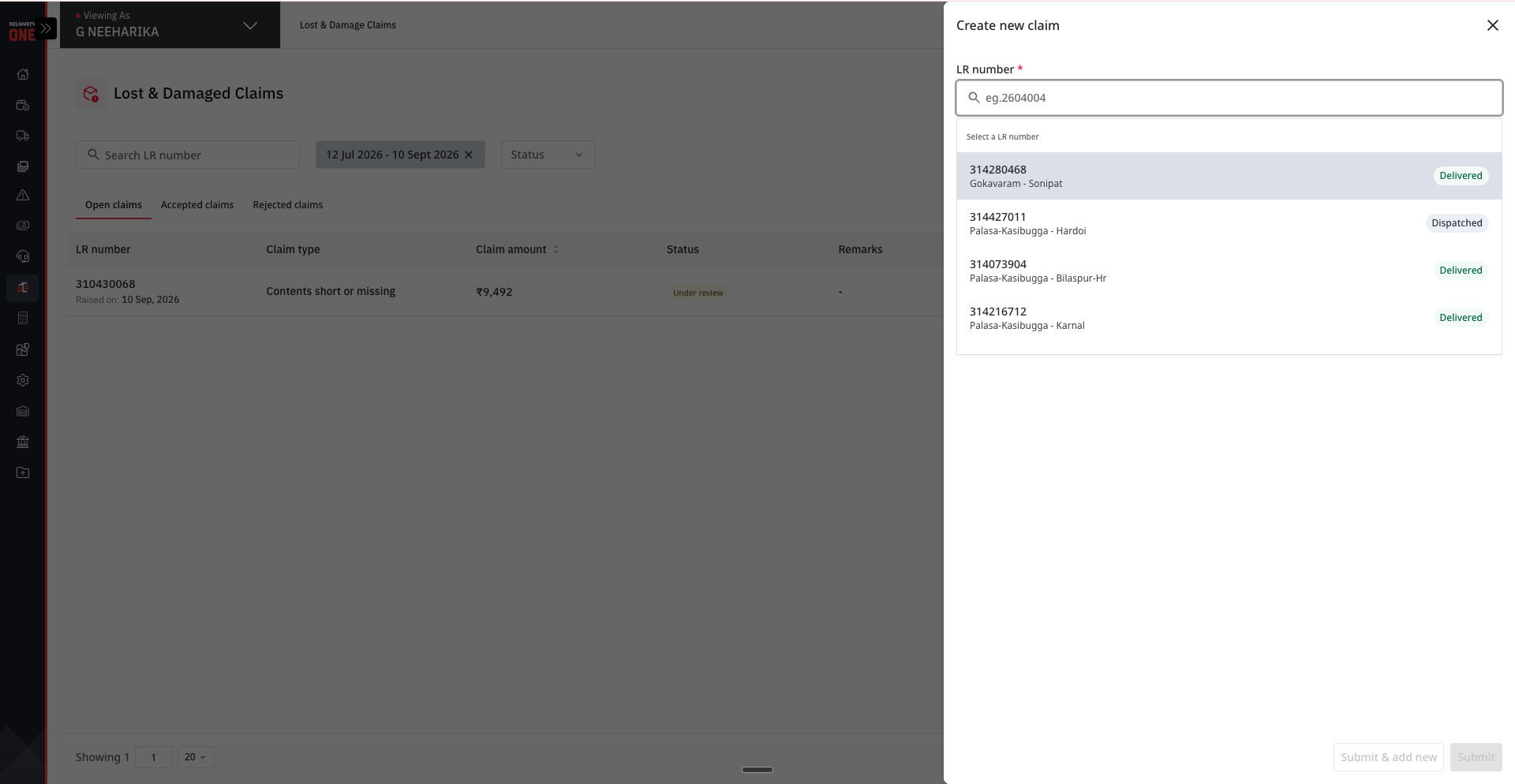
Step 1: Enter the LR Number
Enter the LR number associated with the shipment for which you want to raise a claim.
Once the LR is selected, the system fetches the shipment details, including:
LR number
Total number of boxes in the lot
Shipment value
Shipment status
Last shipment update
Applicable liability/coverage information
Important: All shipments associated with the LR must be in a terminal state: Delivered, RTO, or Marked Lost. If the shipment is delayed or still in transit, raise a support ticket instead of creating a claim.
If the LR is not eligible for claim creation, the system will display an appropriate message.
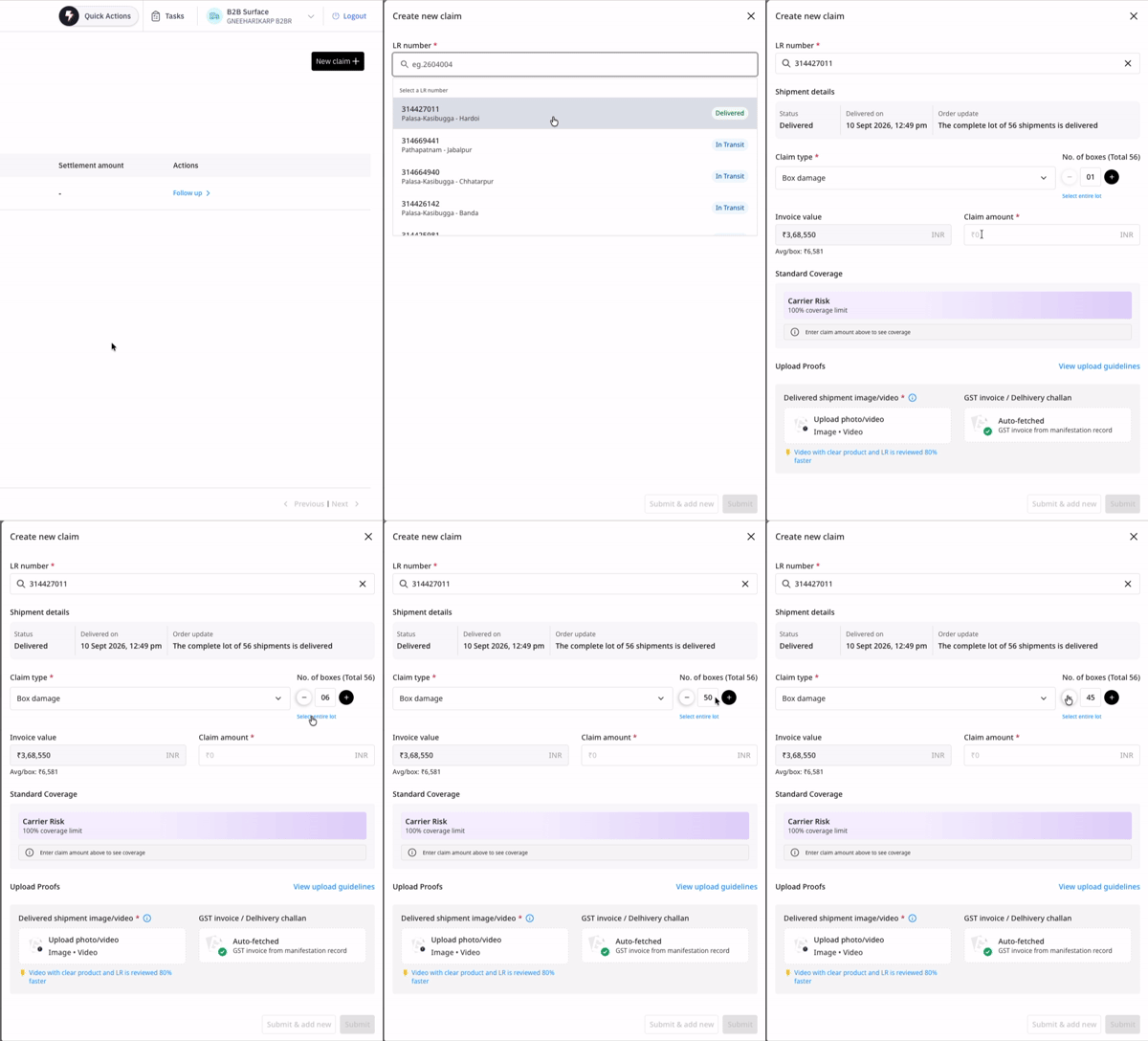
.gif)
Step 2: Select the claim type
Based on the shipment status and available shipment information, you can select the applicable claim type.
Damage
Box damaged
Contents damaged
Quantity
Boxes missing
Contents short or missing
You can select one option from each group where applicable. This allows you to raise combined claims such as:
Box damaged & boxes missing
Contents damaged & contents short
For a shipment that has been marked Lost, the claim type is automatically set to:
Entire shipment missing
This claim type cannot be changed.
Step 3: Enter the affected quantity
Depending on the claim type selected, you may need to enter the number of affected boxes or contents.
For box-level claims:
Enter the number of affected boxes.
The count must be at least 1.
The count cannot exceed the applicable number of boxes in the lot.
For content-level claims:
Enter the number of affected contents/items.
The count must be greater than 0.
For Entire shipment missing, the affected box count is automatically populated based on the lot size.
Step 4: Enter the claim amount
Enter the amount you are claiming.
The claim amount:
Must be greater than ₹0.
Cannot exceed the total value of the lot/shipment.
For Entire shipment missing, the claim amount is automatically populated with the total lot value and cannot be changed.
The applicable liability and settlement values are calculated based on the shipment's liability/coverage terms.
Step 5: Review liability and settlement details
The liability section shows the applicable coverage and settlement information for the claim.
Depending on the shipment's liability terms, the settlement may include:
CN
COF
CN + COF
No settlement under the applicable liability terms
you already know that WhatsApp, they ignore The available CN and COF amounts are displayed based on the applicable liability calculation.
For COF, the amount is pre-filled based on the claim amount. You can reduce the COF amount if required, but it cannot exceed the claim amount.
Step 6: Upload supporting documents
Upload the documents required to support your claim.
The documents required may vary depending on the claim type, claim amount and shipment information.
GST Invoice / Delivery Challan
GST Invoice or Delivery Challan may be required when the claim amount is higher than the applicable average value per box and the claim qualifies for CN settlement.
For Entire shipment missing claims, GST evidence is required as applicable.
If the GST document was already uploaded at the time of shipment manifestation for eligible clients, the GST section may show GST on file and you will not need to upload it again.
Unboxing evidence
Unboxing evidence may be mandatory depending on the claim type selected by the client. For this, the applicable claim type is damaged or Contents short or missing.
You can upload:
Photos
Videos
A video with a clear view of the product and LR can help in faster review.
Packing List / Purchase Manifest
Packing or purchase documents are optional but recommended, especially for:
Boxes missing
Entire shipment missing
These documents can help validate the contents and value of the shipment.
Supporting file requirements
File type | Maximum size |
|---|---|
JPG | 5 MB |
PNG | 5 MB |
5 MB | |
Video / MP4 | 100 MB |
If a video exceeds the supported upload size, an external video link may be provided where supported.
Submit the claim
Once all mandatory information and supporting documents have been added:
Review the LR and claim details.
Check the claim type and affected quantity.
Review the claim amount and settlement details.
Ensure all mandatory documents have been uploaded.
Click Submit Claim.
A claim is created against the LR and can then be tracked from the Lost & Damage Claims section.
Claim lifecycle
Once a claim is submitted, you can track its progress from the claims listing page.
Under review
The claim has been submitted and is currently being reviewed.
Response Needed
Additional information or supporting documents are required from you.
You need to respond within the specified response window.
Approved
The claim has been approved and is being processed for settlement.
Settled
The claim has been settled and the applicable CN and/or COF has been issued.
You can view or download the settlement documents from the claim listing page.
Rejected
The claim has been rejected.
You can dispute the rejection within the applicable dispute window by providing additional supporting information or evidence.
Claim Closed
The claim has been closed and no further action is available.
Follow-up and additional information
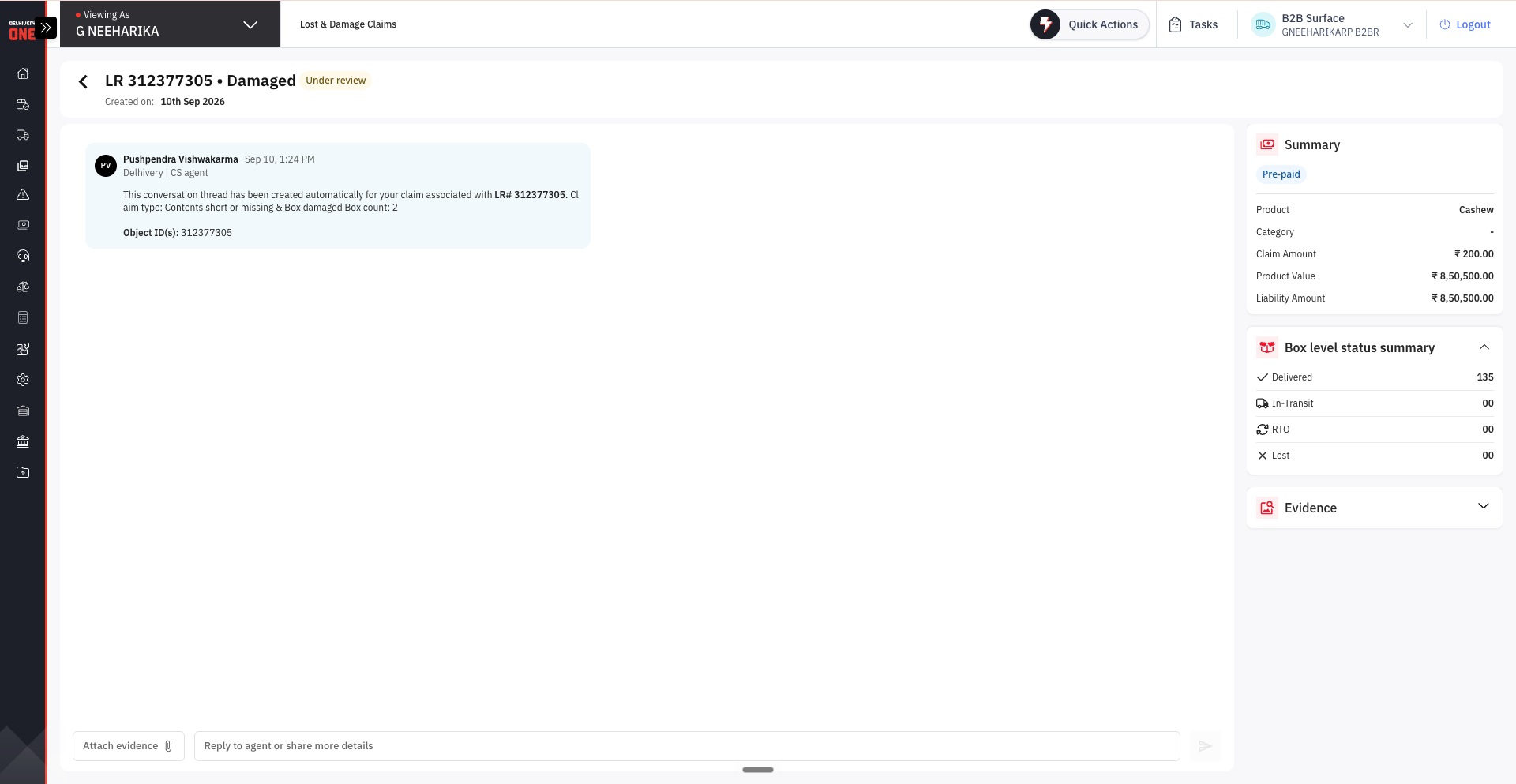
Follow up on a claim under review
If your claim is under review and you need an update, you can use the Follow Up option within the applicable follow-up window.
Respond to a Response Needed claim
If the claim is in Response Needed status, provide the requested information or supporting documents within 5 business days.
A countdown may be displayed against the claim.
If no response is provided within the specified window, the claim may be closed.
Dispute an approved or settled claim
If you have an issue with the settlement, you can raise a dispute within 5 business days of the applicable status update.
After the dispute window expires, only the settlement documents can be viewed and downloaded
Dispute a rejected claim
If your claim is rejected and you do not agree with the decision, you can dispute it within 5 business days.
Supporting evidence is required when disputing a rejected claim. A text-only response is not sufficient.
FAQs
1. What information do I need to raise a B2B claim?
You need:
LR number
Claim type
Number of affected boxes or contents, as applicable
Claim amount
Required supporting documents
Additional documents may be required depending on the claim type and claim amount.
2. Can I raise a claim if some shipments under the LR are still in transit?
No.
All shipments associated with the LR must reach a terminal state before a claim can be created. The applicable terminal states are:
Delivered
RTO
Marked Lost
If the shipment is still in transit or delayed, raise a support ticket from the Need help? section.
Use:
Category: Issue with delivered/returned shipment (damage, missing, wrong, partial, etc.)
Subcategory: Partial / Short shipment delivered
Once the shipments associated with the LR reach a terminal state, you can raise the applicable claim.
3. Can I raise a claim for an LR that has been marked Lost?
Yes.
For an LR marked Lost, the claim type is automatically set to Entire shipment missing.
The affected box count and claim amount are automatically populated based on the lot details.
4. What claim types are available for B2B?
You can raise claims for:
Box damaged
Contents damaged
Boxes missing
Contents short or missing
Box damaged & boxes missing
Contents damaged & contents short
Entire shipment missing
Entire shipment missing is applicable when the entire shipment has been marked Lost.
5. Can I select more than one claim type?
Yes, where applicable.
You can select one claim type from the Damage group and one from the Quantity group.
For example:
Box damaged + Boxes missing
Contents damaged + Contents short
6. What is the claim window for B2B claims?
The claim window depends on the claim type:
Claim type | Claim window |
Damaged | 5 days |
Box Short | 5 days |
Content Short | 5 days |
Short and Damaged | 5 days |
Missing | 5 days |
The claim window is checked based on the shipment's applicable delivery/status timeline.
7. What happens if the claim window has expired?
If the applicable claim window has expired, the claim cannot be raised.
The system will show a message indicating that the claim window has closed.
8. When is GST Invoice / Delivery Challan mandatory?
GST evidence may be mandatory when the claim amount exceeds the applicable average value per box and the claim qualifies for CN settlement.
For Entire shipment missing, GST evidence is required as applicable.
If GST was already uploaded at manifestation for eligible clients, you may see GST on file instead of being asked to upload the document again.
9. Is unboxing evidence mandatory?
Unboxing evidence is mandatory for damage or short/missing claims when no operations exception/NSL is recorded for the shipment.
You can upload a photo or video as evidence.
10. What documents can I upload?
You can upload:
GST Invoice / Delivery Challan
Unboxing photos or videos
Packing List
Purchase manifest
Other relevant supporting documents
11. What are the file size limits?
JPG: up to 5 MB
PNG: up to 5 MB
PDF: up to 5 MB
Video / MP4: up to 100 MB
12. Can I raise another claim for the same LR?
An open or already accepted claim for the same LR can prevent a new claim from being raised.
If a previous claim was rejected, you may be able to raise a claim under a different applicable dispute type.
13. What happens if a claim of the same type was already rejected?
You cannot raise the same rejected dispute type again.
If applicable, select a different dispute type.
14. What is CN and COF?
CN (Credit Note) and COF (Certificate of Fact) are settlement components that may be applicable based on the shipment's liability terms.
The applicable amounts are shown during claim creation and after settlement.
15. Can I change the COF amount?
Yes.
The COF amount is pre-filled based on the claim amount. You can reduce it, but it cannot exceed the .
16. Why is my claim amount limited?
The claim amount cannot exceed the total value of the lot/shipment.
The applicable settlement amount may also be limited by the liability terms for the shipment.
17. What happens after I submit the claim?
The claim goes into Under review status.
You can track the claim from the Lost & Damage Claims section. If additional information is required, the status may change to Response Needed.
18. How long do I have to respond if more information is requested?
You generally have 5 business days to respond to a Response Needed claim.
The applicable response deadline is displayed against the claim.
19. Can I follow up on a claim?
Yes.
For claims in Under review, you can use the Follow Up option.
20. What happens after a claim is approved?
Once approved, the claim moves through the settlement process.
After settlement, the applicable CN and/or COF details are made available against the claim, and you can view or download the settlement documents.
Bulk Claim Creation via Email
If you have multiple claims to raise, you can use the bulk claim creation process instead of raising each claim individually on Delhivery One.
How to raise bulk claims
Download the B2B bulk claim template.
Fill in the required details for each claim.
Add the supporting evidence.
Send the completed template to the applicable B2B claims email ID.
Details required in the template
LRN: LR number
Dispute type: Missing, Content Short, Box Short, Short and Damaged, or Damaged
Claim amount: Should not exceed the declared product value
Claimed box count: Number of affected boxes from the lot
Evidence: Google Drive or Dropbox link to the supporting evidence
Client remarks: Any additional information, if required
Where to send the completed template
Use the email ID applicable to your client type:
Important
Evidence is mandatory for bulk claims.
Evidence files up to 100 MB can be uploaded directly. For files above 100 MB, provide a Google Drive or Dropbox link.
Make sure the shared evidence link is accessible to the Delhivery team.
For a smaller number of claims, you can raise them directly from Delhivery One → Disputes → Lost & Damages Claims.