Overview
You will learn about a step-by-step guide to process single and bulk orders. This article includes
- How can I book my shipment?
- How can I get my order picked up?
- What are shipping labels? How can I print & paste shipping labels?
- Real-time tracking for orders
Processing a single shipment
Steps to process an order
Navigate to Main Menu > Orders > Forward Shipments > Create New Order
1. How can I book my shipment?
Creating and Manifesting a New Shipment Order
This document describes how to upload an invoice, review and confirm its details, enter package information, define a new package type, and finally manifest the shipment order.
Step 1: Upload the Invoice File
Click the Upload Invoice link, browse your computer to select the appropriate invoice file, then click Open to begin the upload process.


Step 2: Review and Confirm Invoice Details
Once the invoice is uploaded, review all displayed details for accuracy. You can zoom in on the invoice to verify the information, and then click Confirm and update to save the invoice details.


Step 3: Enter Package Details
Click Proceed to move to the package details section. In the Product Description field, type relevant product description, enter the product category, and enter Total Shipment Weight.


Step 4: Add a New Package Type
Open the package selection menu and choose the option to Add New Package. Name the package, set the dimensions, and click Save to store the new package configuration.


Step 5: Manifest the Shipment Order
Click Proceed to navigate through the remaining sections. When all required information is confirmed, click Manifest now to complete the order creation and manifesting process.


2. How can I get my order picked up?
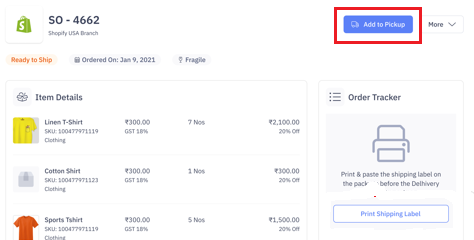
- Click Add to Pickup to create a new pickup request or add to an existing pickup request. Once you schedule the Pickup, the order state moves from "Ready to Pick" to "Ready for Pickup"
- A Delhivery agent will be assigned for this pickup at a predefined timeslot
3. What are shipping labels? How can I print & paste shipping labels?
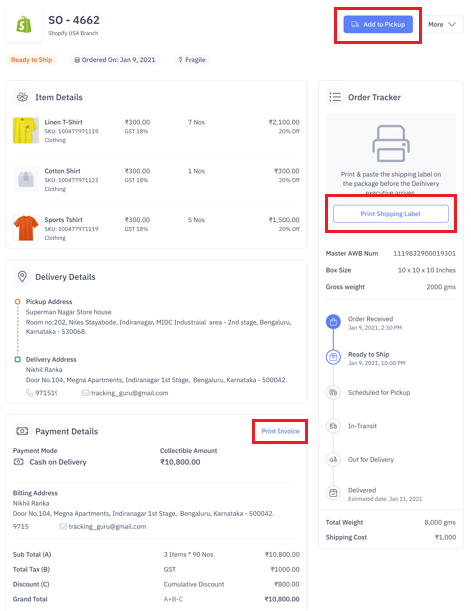
- Print Shipping label and paste it on the shipment
- If you request to print the same Shipping Label twice, the system will show you a warning message to confirm this
- Also print the invoice
4. Track Order Status
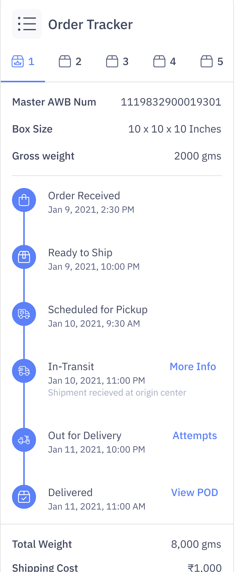
- After the Delhivery agent picks up the Shipment, the order state moves from "Ready for Pickup" to "In Transit"
- On the Order details page, you can track the complete lifecycle of the Shipment in real-time
- In Transit – View Information showing the last location
- Out for Delivery – View number of delivery attempts made and last remarks updated by Delhivery agent
- Delivered – View Proof of Delivery
Processing bulk orders
1. Shipment Manifestation
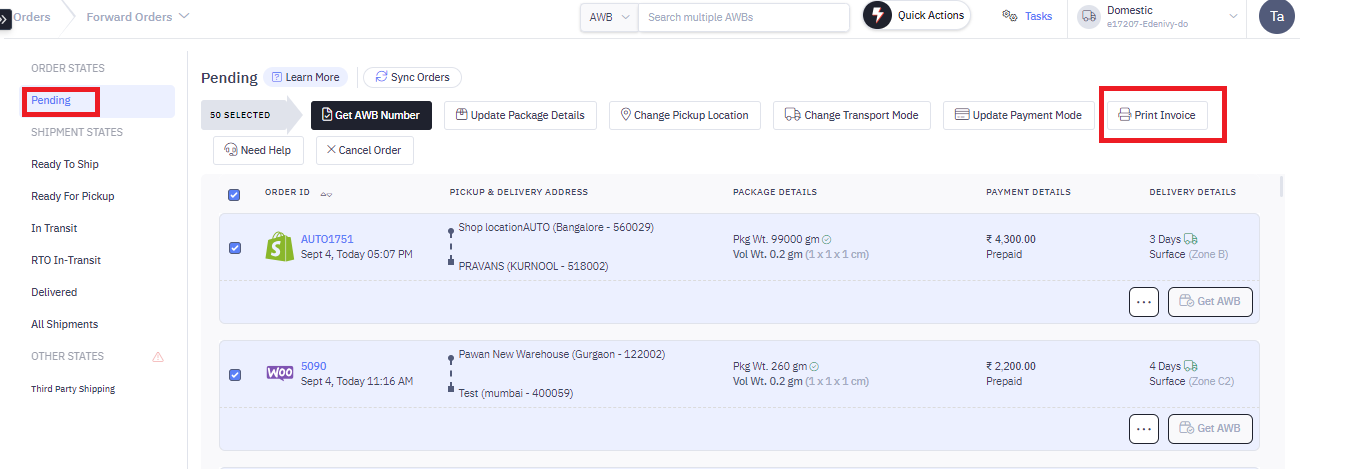
- Navigate to Main Menu > Orders > Forward Orders > Pending
- You can view the Chargeable Weight, Delivery Times and Estimated Shipping Cost before shipping your Pending Orders
- Select order(s) & click Get AWB number
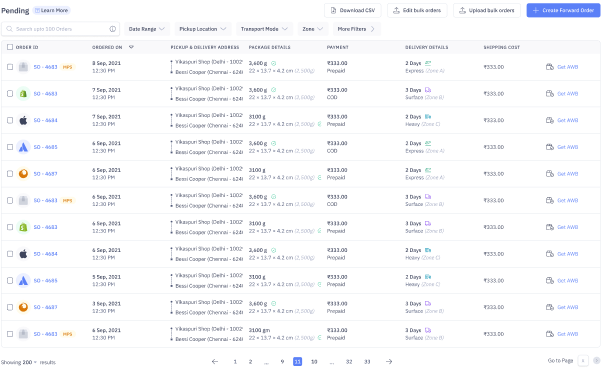
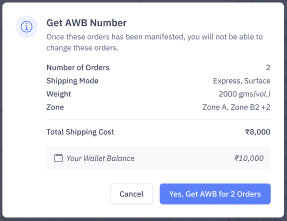
- Review Number of orders, Total weight, Shipping mode & Total shipping cost, then click, "Yes, Get AWB for ‘x’ orders."
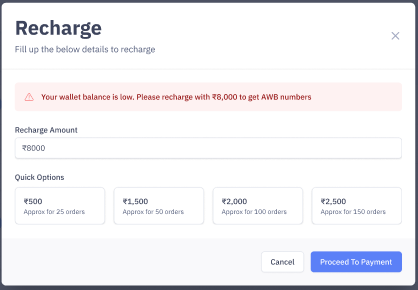
- In case of an insufficient wallet balance, you need to recharge the wallet with the required amount. Select the amount & click Proceed to Payment. Once the wallet balance is updated, continue generating the AWB number.
2. Print Shipping Labels
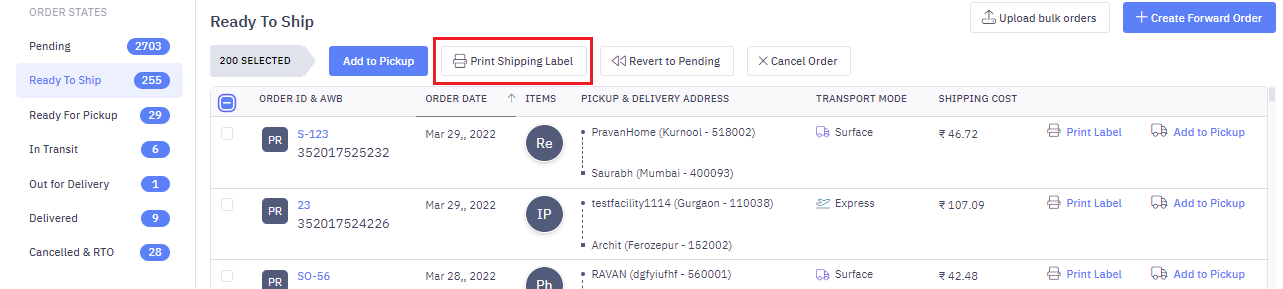
- Navigate to Main Menu > Orders > Forward Orders > Ready to Ship
- Select the order(s) & click Print Shipping Label
3. Print Invoices
- Navigate to Main Menu > Orders > Forward Orders > Pending
- Select the order(s) & click Print Invoice