Overview
Manage Appointments is a new section on your Delhivery One where you can book delivery appointments, track the ones you've already booked, and quickly fix anything that's holding a shipment back, like a missing document or an unpaid freight charge
To view these shipments:
Navigate to: Left Menu > Manage Appointments
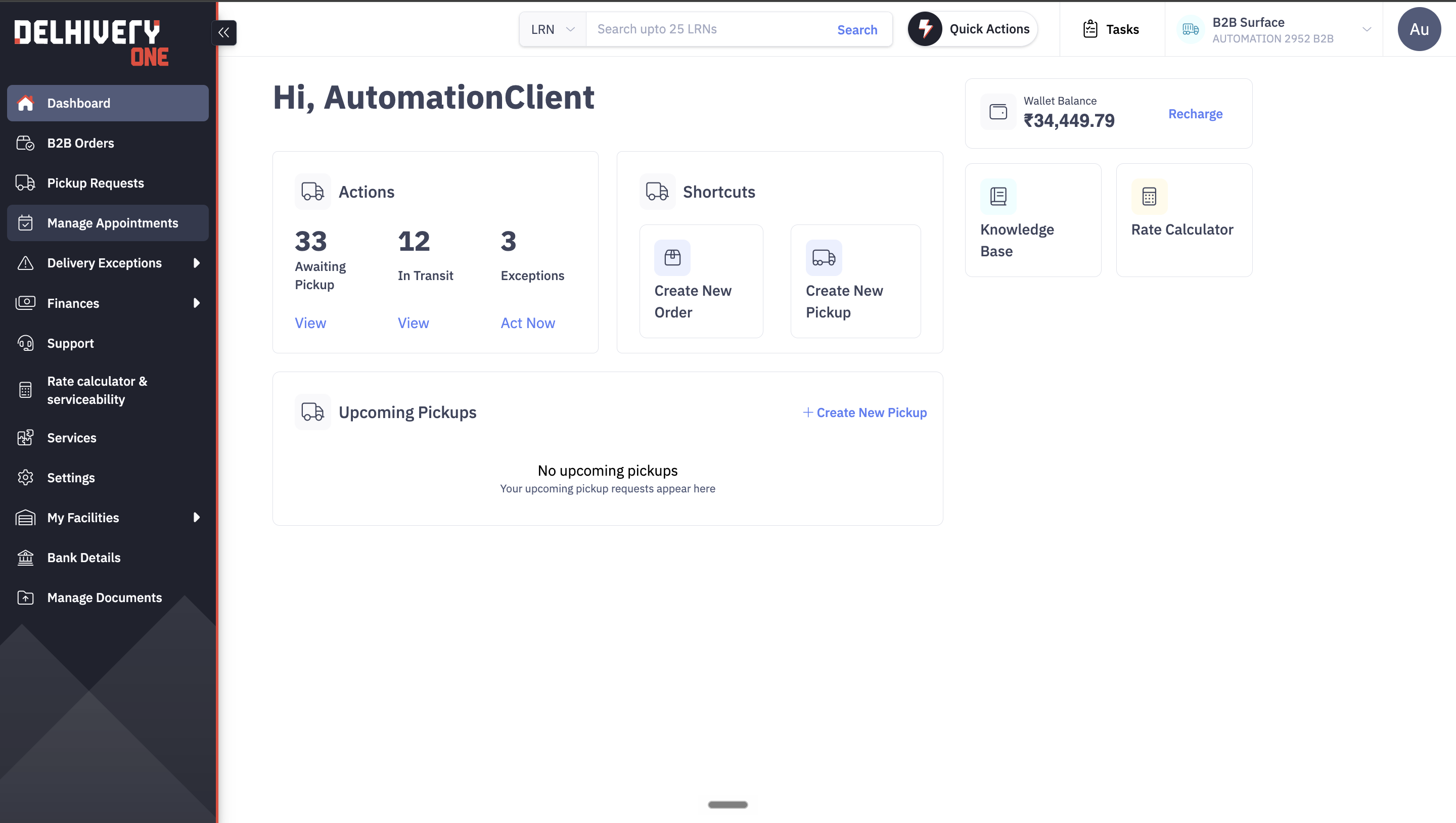
Manage Appointments is organised into three tabs. Each one has a clear, specific job:
- Pending: Shipments that still need an appointment booked.
- At risk: Appointments that are booked, but an exception needs your attention before the shipment can move forward.
- Booked: Appointments that are booked
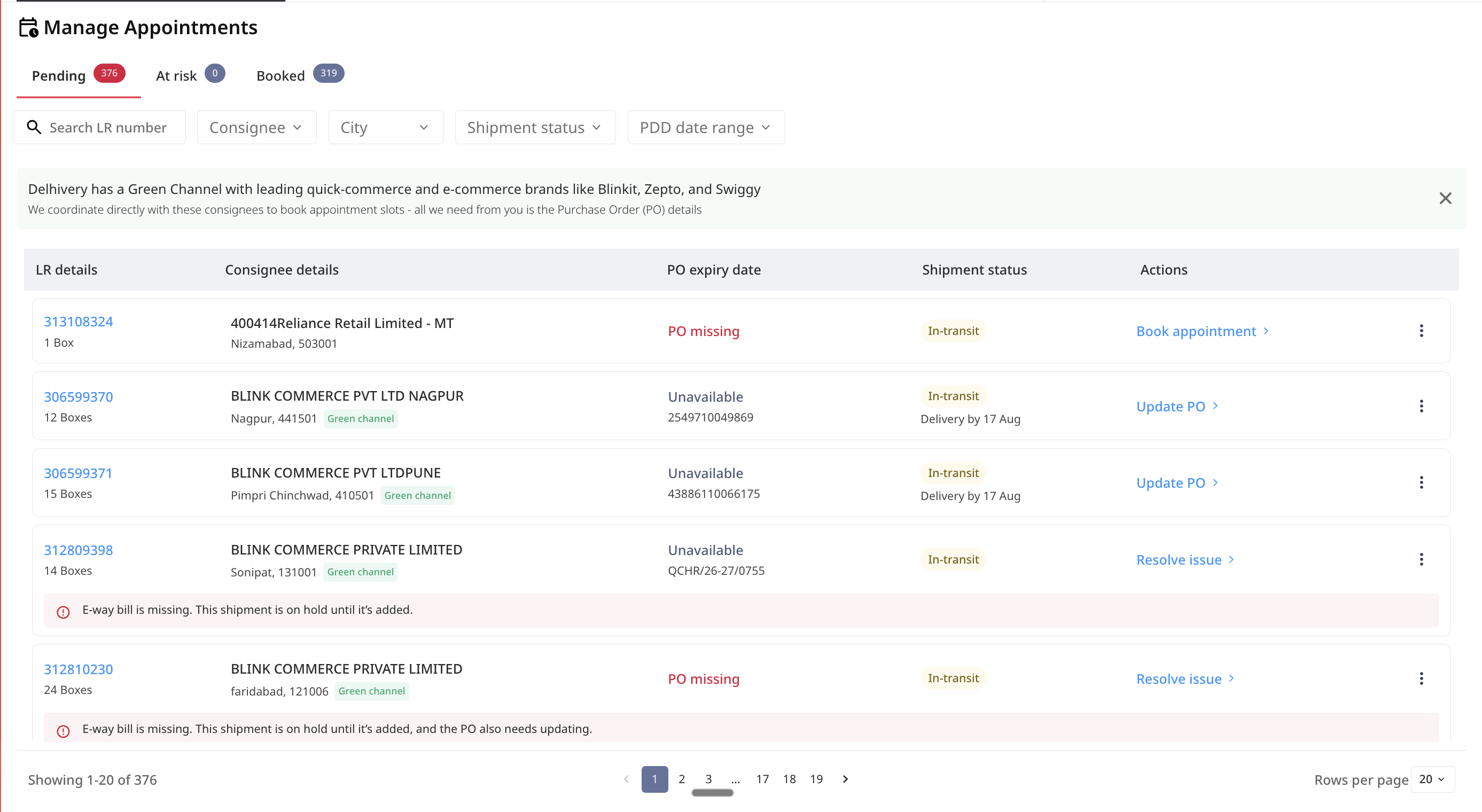
Note: Booked appointments are split across two tabs - Booked at risk (has an exception) and Booked (no exception), so it's clear which shipments need action. Pending appointments are not split this way: if a shipment in the Pending tab also has an active exception, it stays in the same tab, and the exception is surfaced there via a snackbar.
In this section, you will learn:
- How to book an appointment ?
- .How to track a booked appointment ?
How to resolve delivery exception on appointment shipment ?
How to book an appointment ?
The Pending tab shows every shipment that still needs an appointment.
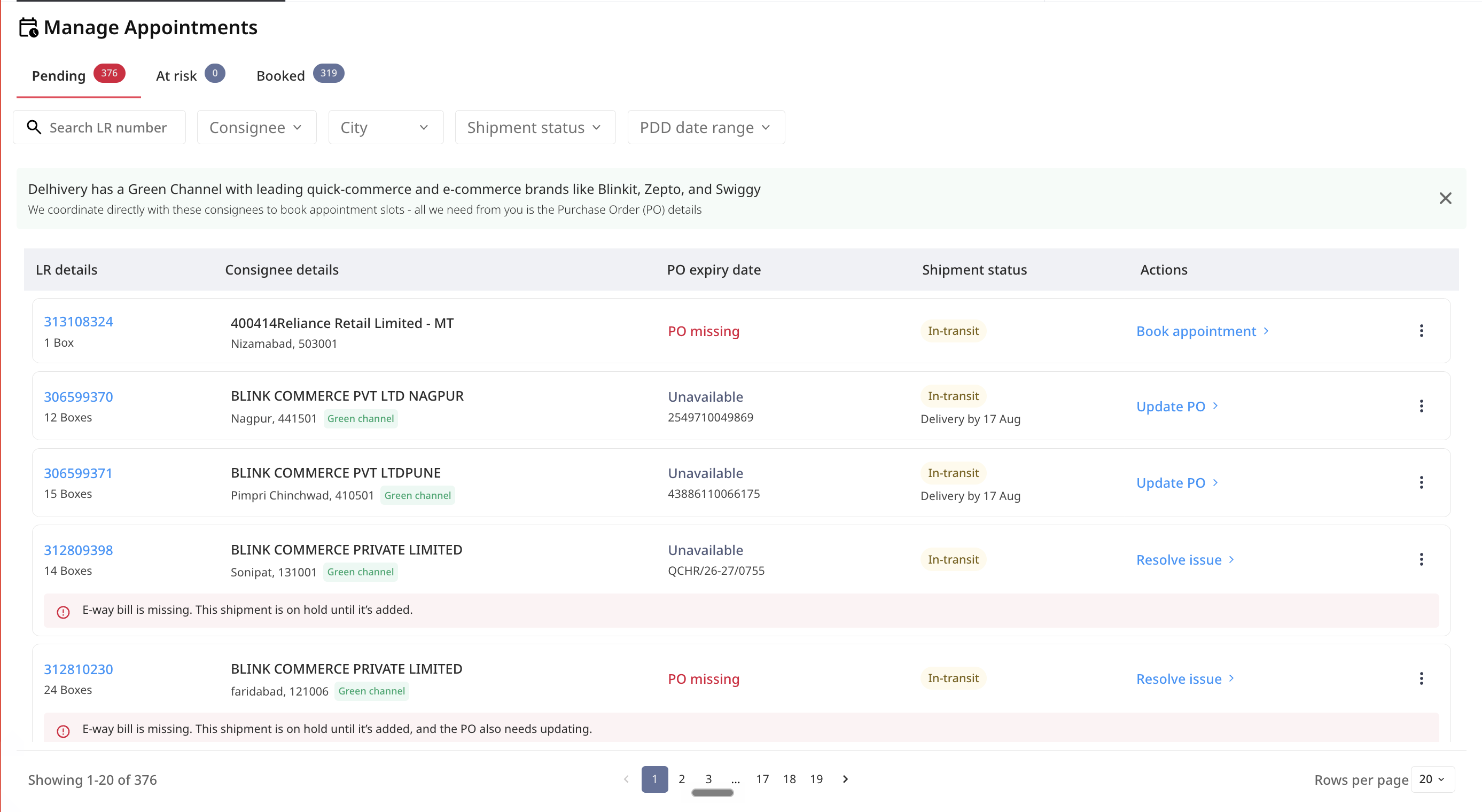
Note: Below the shipment status, you'll see the expected delivery date (PDD). If the shipment has already been attempted at least once, you'll see the date of the last attempt there instead.
Steps to book an appointment
For Green Channel Shipments (Blinkit, Zepto, Swiggy)
Note: We coordinate the appointment slot directly with the consignee for these shipments, you don't need to select a time.
- Click on "Update PO"
- Enter the PO number and PO expiry date and Click Save.
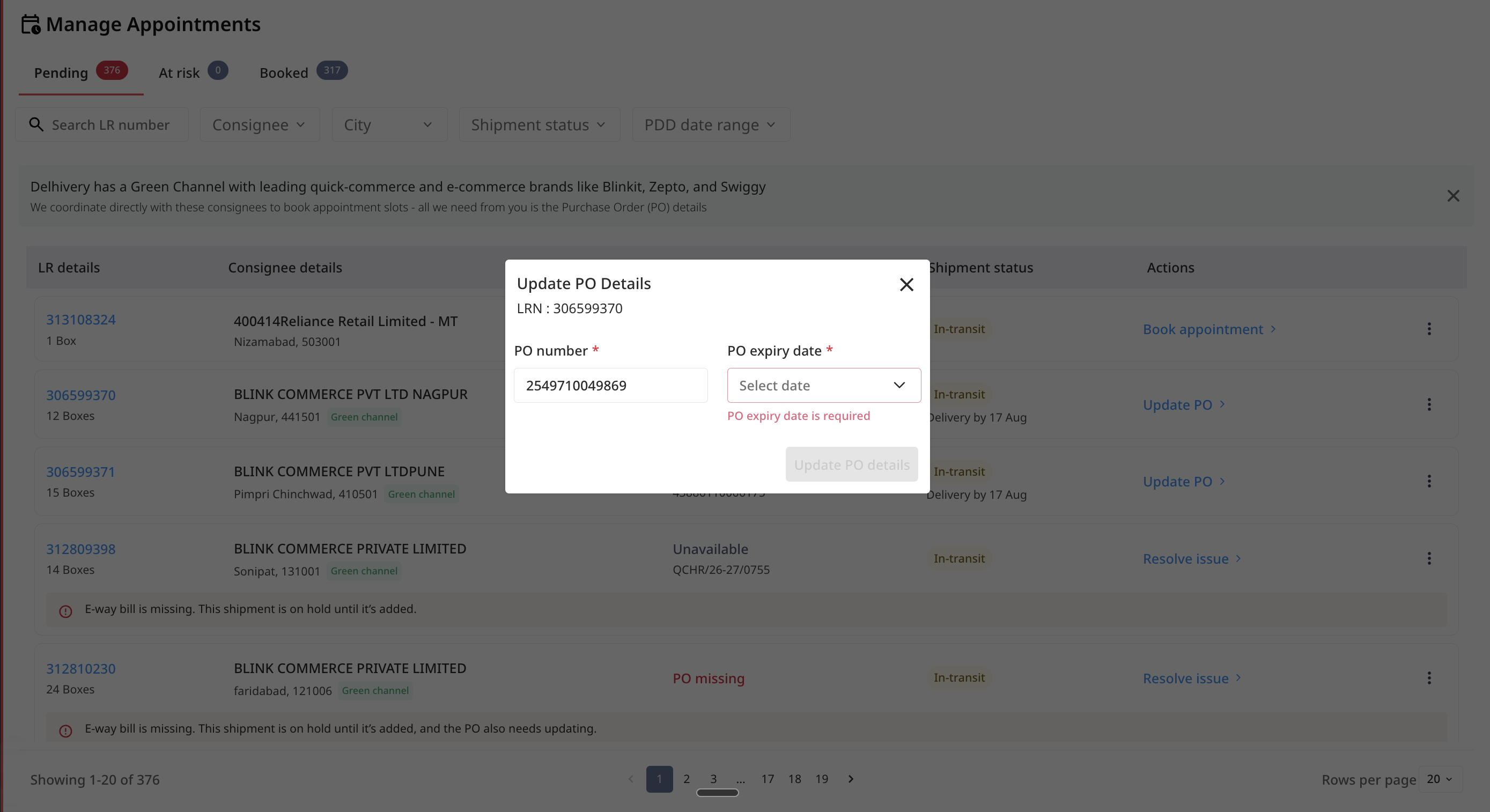
"Awaiting Consignee Response"
Once you've submitted PO details for a Green Channel shipment, the status will show as "Awaiting consignee response" in place of a button.

For All Other Consignees
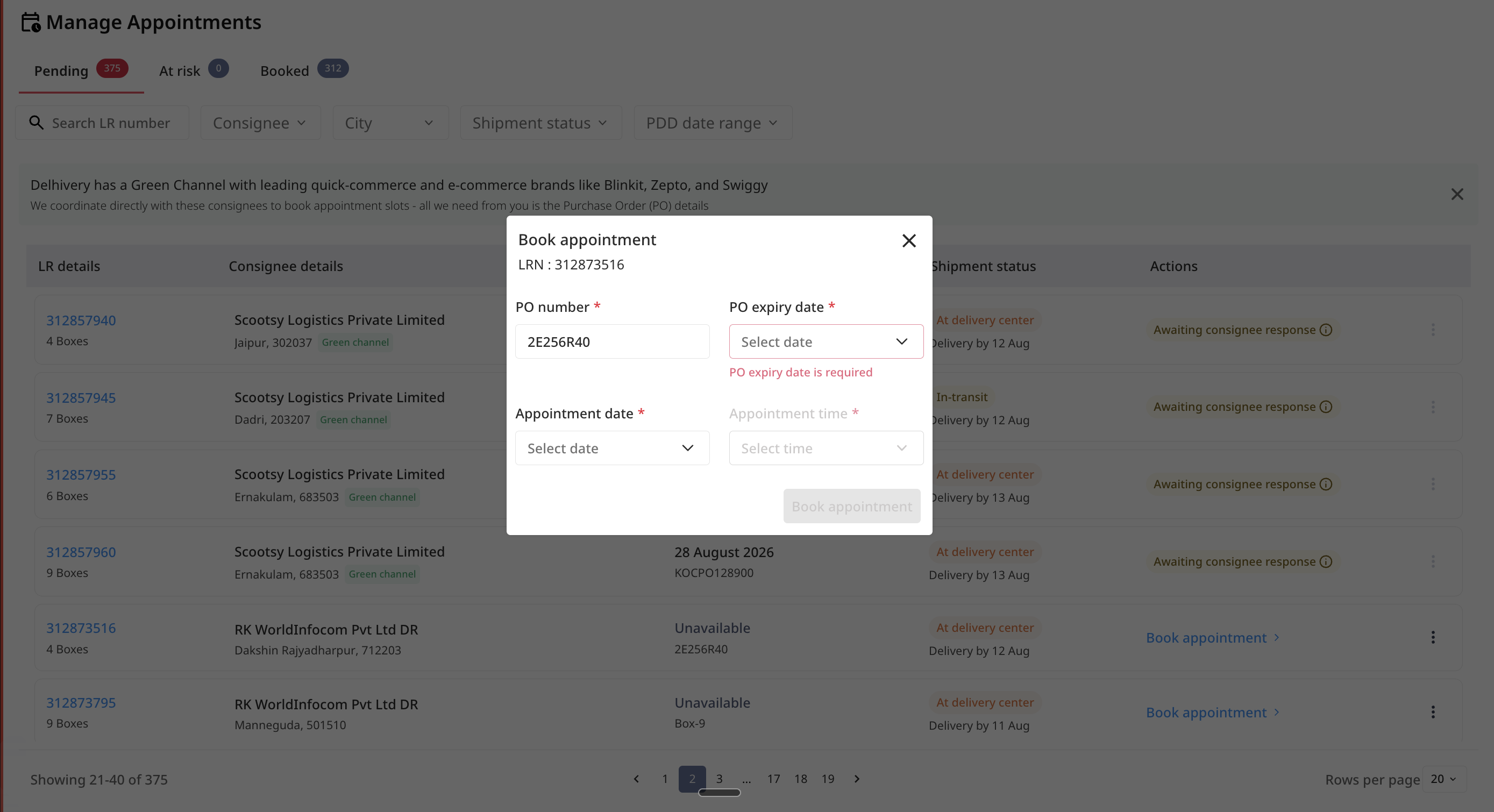
- Click Book Appointment.
- Select an appointment date and slot.
- Click Confirm.
How to track a booked appointment ?
The Booked tab shows appointments that are booked providing a forward looking view. You can update an appointment here if your plans change.
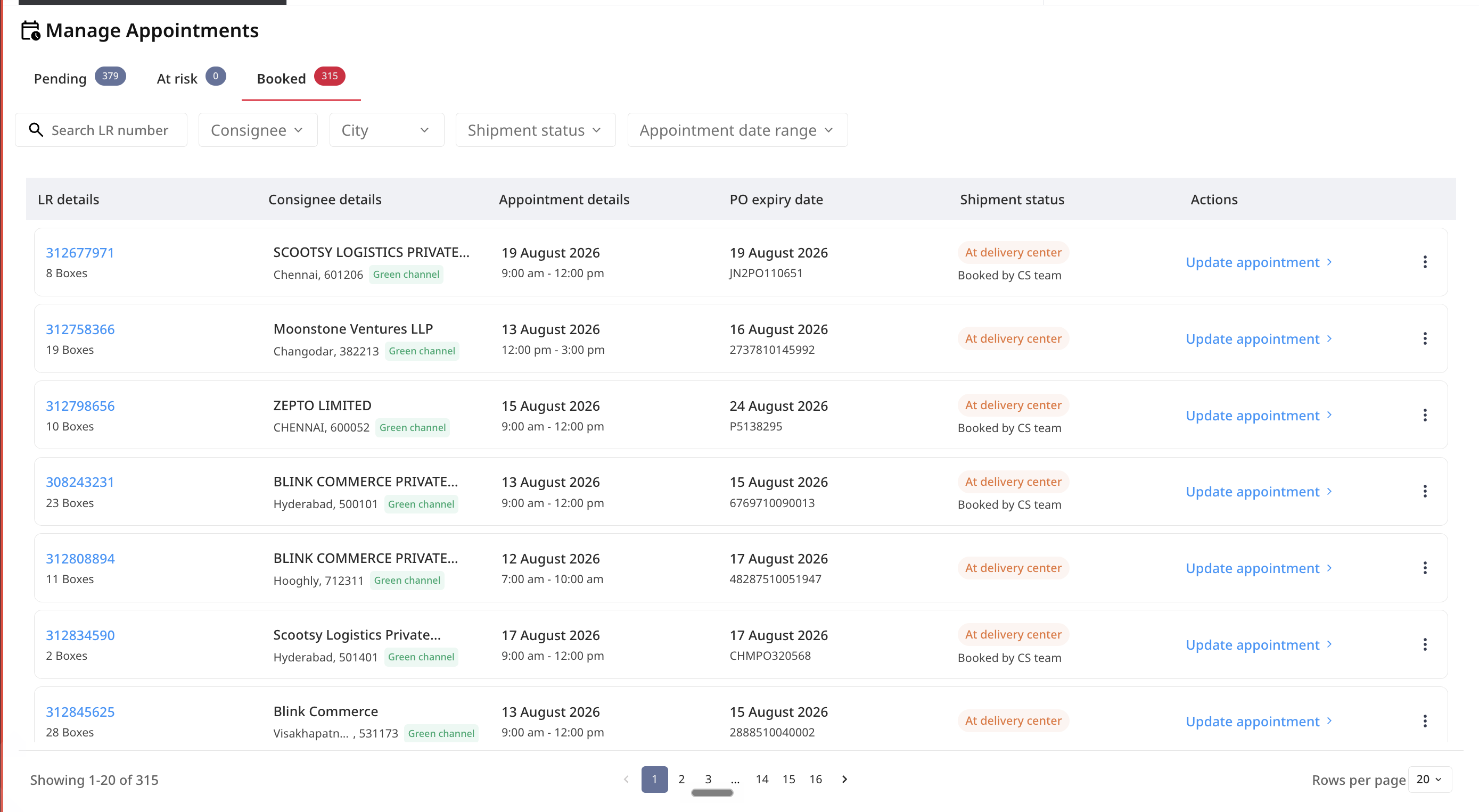 Note: For every booked appointment (in both the Booked and Booked at risk tabs), you'll see who booked the appointment displayed below the shipment status.
"Delay in Transit"
If a shipment's appointment is tomorrow but it's still in transit or hasn't been picked up yet, the status will change to "Delay in transit".

How to resolve delivery exception on appointment shipment?
If an exception is active on a shipment, in the Pending tab or the At risk tab, you'll see a message with a Resolve Issue button. Click it to complete the required action for that exception. What each exception means and how to resolve it is listed below.
The Resolve Issue button always opens the same way, but what it asks you to do can vary depending on what else is pending on the shipment:
- Just the exception: CTA is Resolve Issue, and the only action required is resolving the exception.
- Exception + Update PO (Green Channel shipments): CTA is Resolve Issue, and the popup asks you to both resolve the exception and update the PO details.
- Exception + Book appointment (all other shipments): CTA is Resolve Issue, and the popup asks you to both resolve the exception and book the appointment.
Note: The popup that opens adjusts automatically based on which of these combinations applies to the shipment and exception type.
E-way Bill Required
Issue: Your shipment is on hold because the e-way bill is missing or has expired.

How to Resolve:
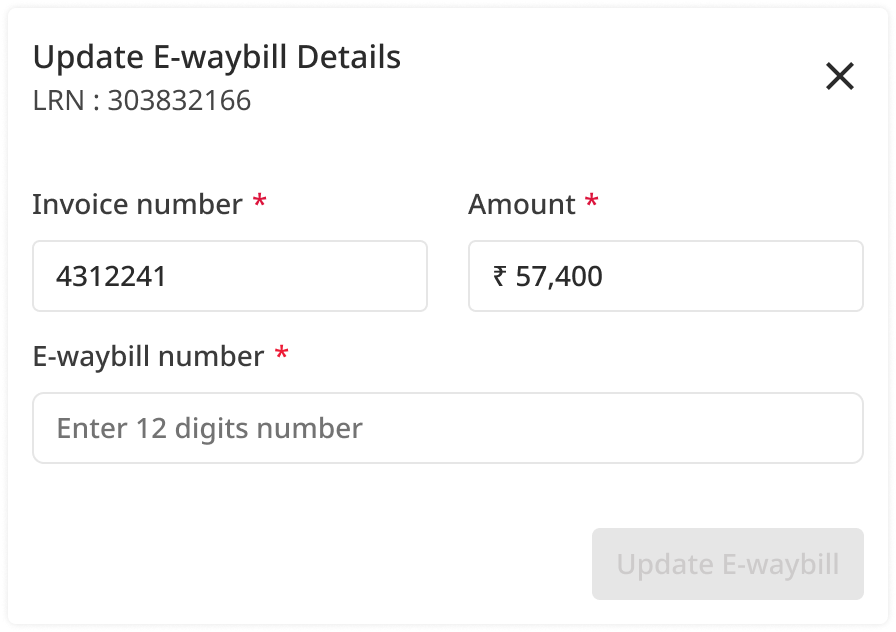
Update E-Way Bill
- Click on Resolve Issue.
- Enter the e-way bill number (Invoice number & amount will be prefilled)
- Click Save Changes.
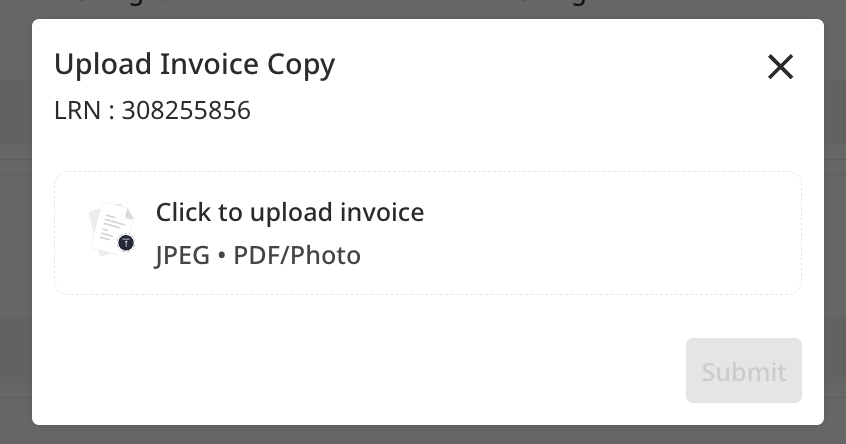
Invoice Copy Needed
Issue: Your shipment is on hold because the invoice copy is missing.

How to Resolve:
Upload Invoice
- Click on Resolve Issue.
- Click Choose File to upload the invoice.
- Click Submit.
Freight Collection
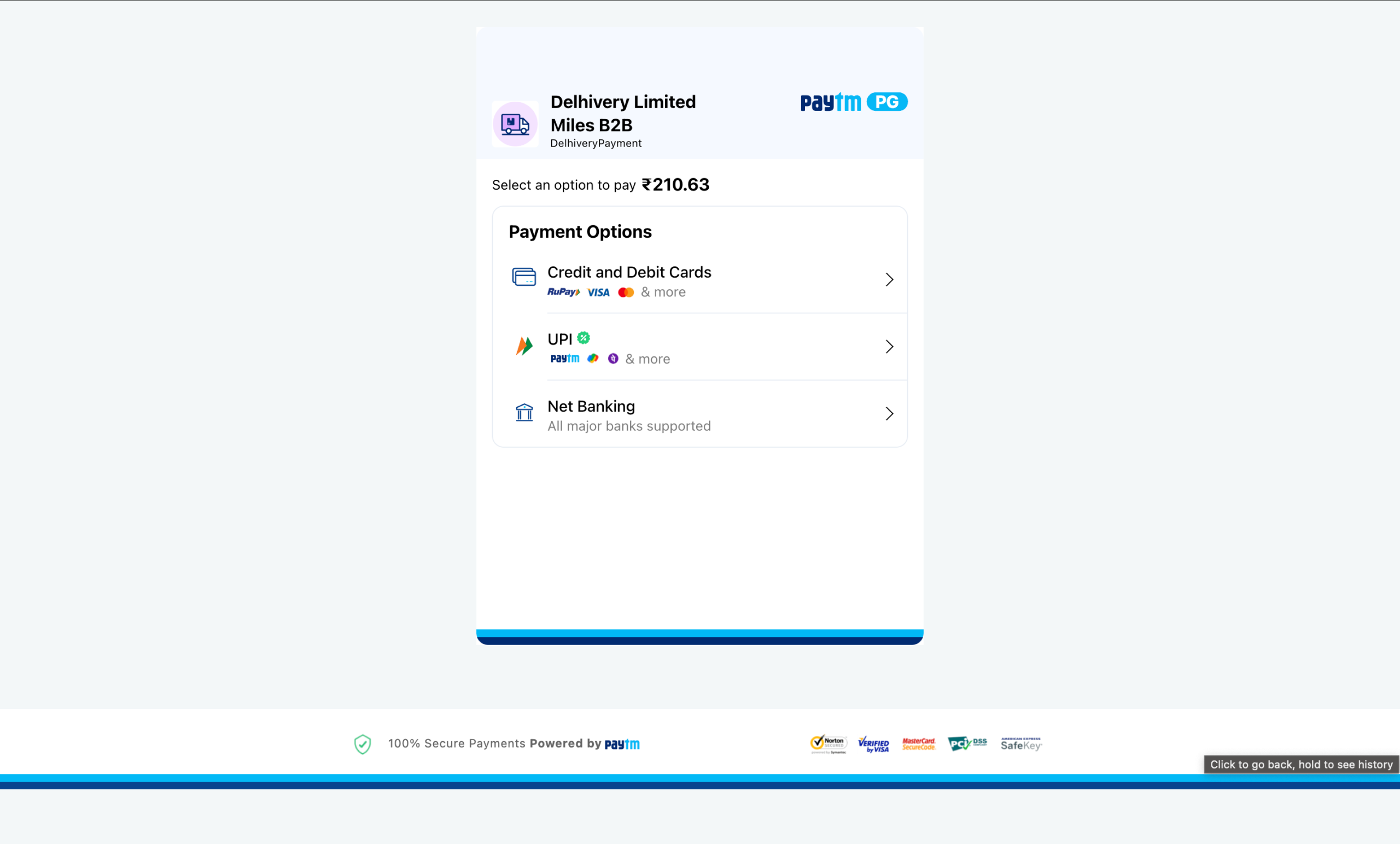
Issue: Your shipment has pending freight charges that need to be paid before we can attempt delivery.

How to Resolve:
Pay Freight
- Click on Pay Freight next to the shipment.
- You'll be redirected to a payment link to complete the payment.
Note: If freight charges are the only thing outstanding, you'll see Pay Freight directly. If something else also needs fixing, you'll see Resolve Issue instead, with the payment step included alongside the other action.
`
Payment Dispute
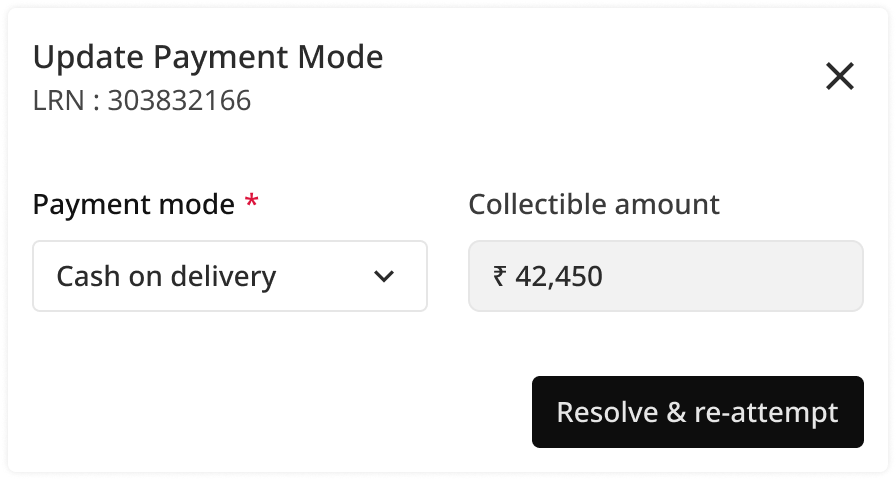
Issue: Your shipment is on hold due to a mismatch in payment mode — it was marked as COD, but the consignee claims it's prepaid.

How to Resolve:
Update Payment Mode
- Click on Resolve Issue.
- Select the correct payment mode.
- Click Save Changes to confirm.
Incorrect Consignee Details
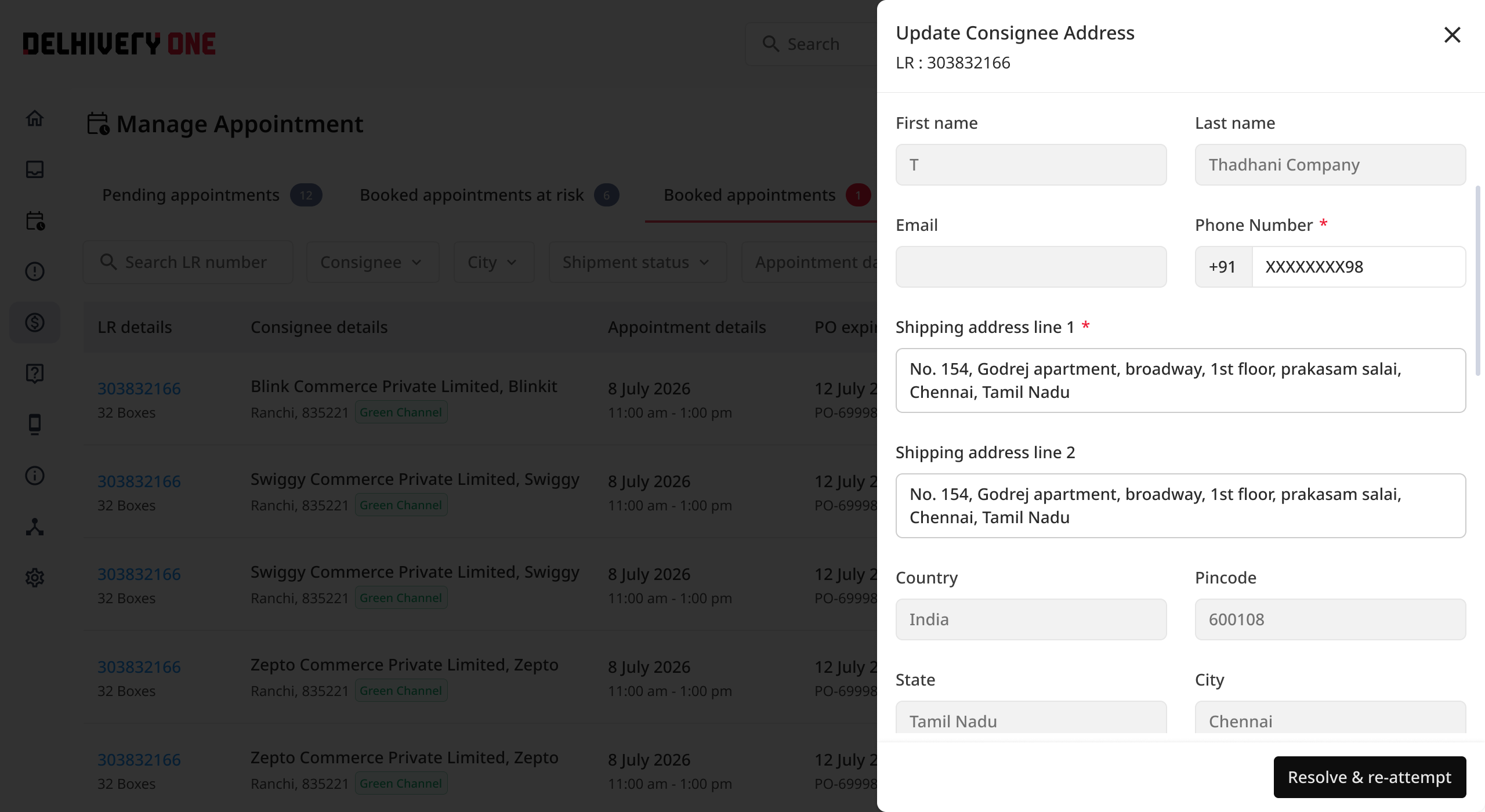
Issue: Delivery failed because the consignee's phone number or address was incomplete or incorrect.

How to Resolve:
Update Consignee Details
- Click on Resolve Issue.
- Update the name, address, city, pincode, or phone number as needed.
- Click Save Changes.
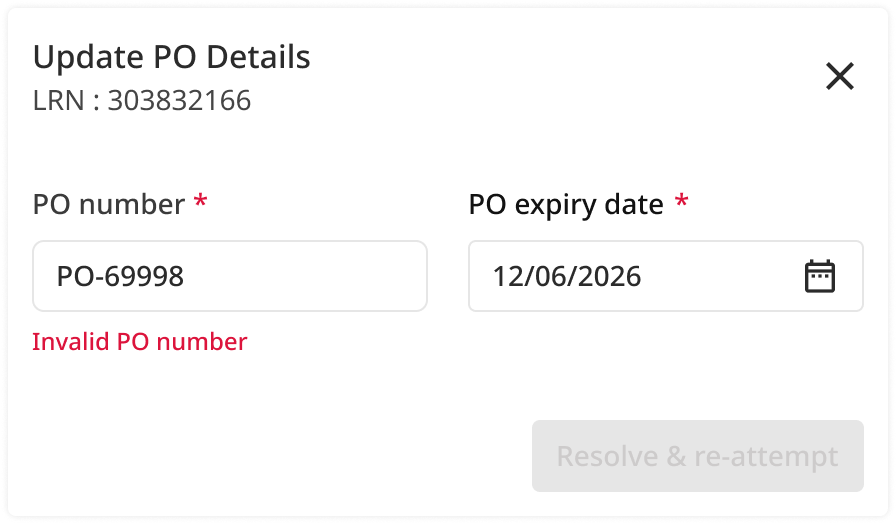
Invalid / Expired PO
Issue: Delivery failed because the PO number on file is invalid or has expired.

How to Resolve:
Update PO
- Click on Resolve Issue.
- Enter the new PO number and expiry date.
- Click Save Changes.
Other Delivery Failure Reasons
Issue: Delivery couldn't be completed. The specific reason is shown in the popup — for example, the consignee was unavailable, or asked to reschedule.


How to Resolve:
Reattempt Delivery
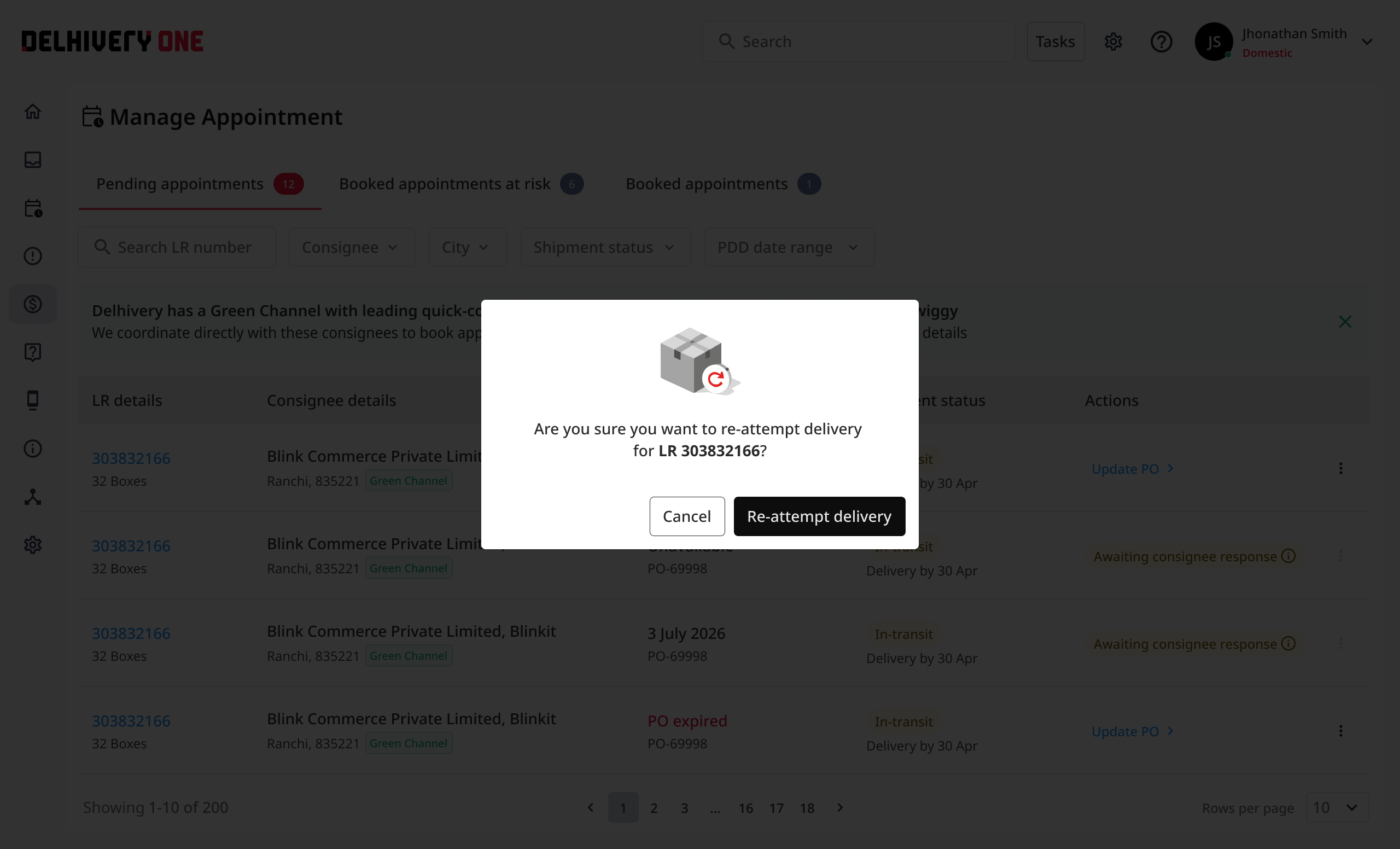
- Click on Resolve Issue, then choose Reattempt.
- We'll schedule another delivery attempt.